> ## Documentation Index
> Fetch the complete documentation index at: https://serval-hannah-docs-custom-access.mintlify.site/llms.txt
> Use this file to discover all available pages before exploring further.
# Managing Tickets
> Manage and track customer requests with Serval's intelligent ticketing system
## Viewing and managing tickets
### Ticket list view
The main tickets page displays all tickets for your selected team, organized by status groups:
* **To Do** - New tickets awaiting action
* **In Progress** - Tickets currently being worked on
* **Done** - Completed tickets
* **Canceled** - Tickets that were closed without resolution
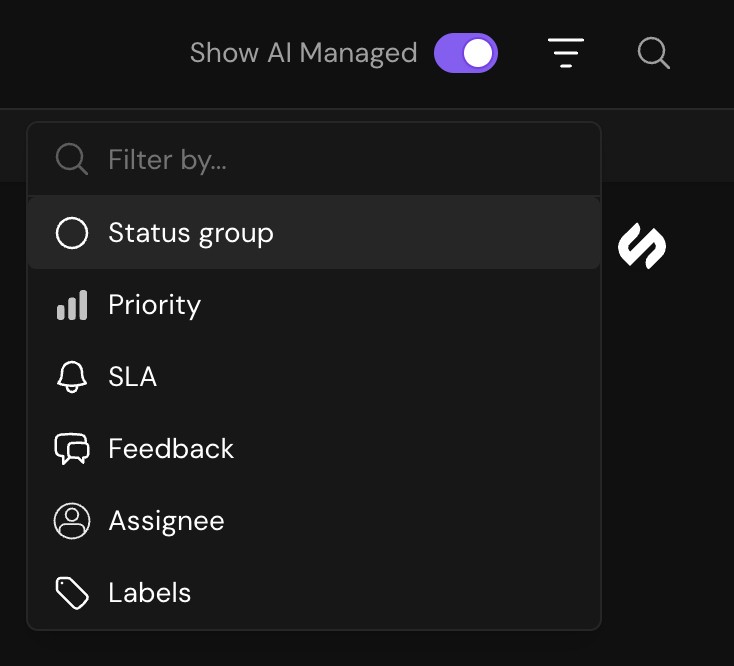
Use the search bar in the top-right to quickly find specific tickets, or click the filter button to narrow results by various ticket attributes.
 ### Modifying tickets from the list view
You can update key ticket attributes directly from the list view without opening each ticket:
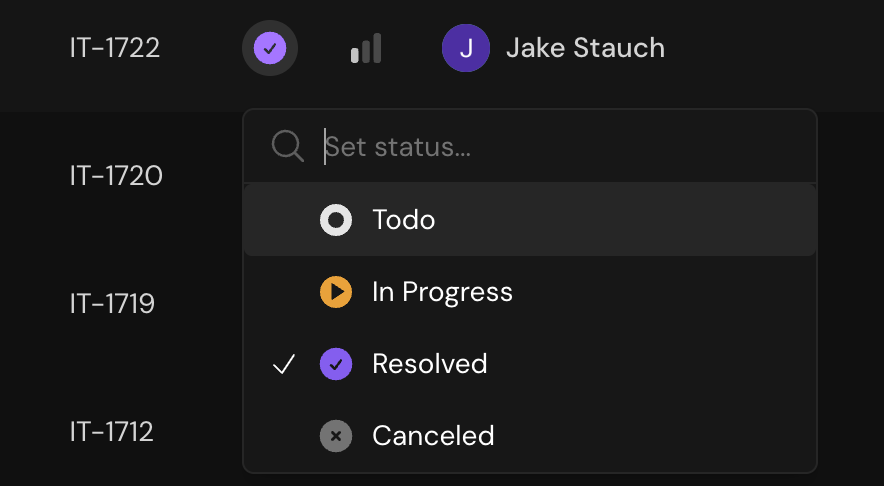
Click the status dropdown to move tickets between workflow stages
### Modifying tickets from the list view
You can update key ticket attributes directly from the list view without opening each ticket:
Click the status dropdown to move tickets between workflow stages
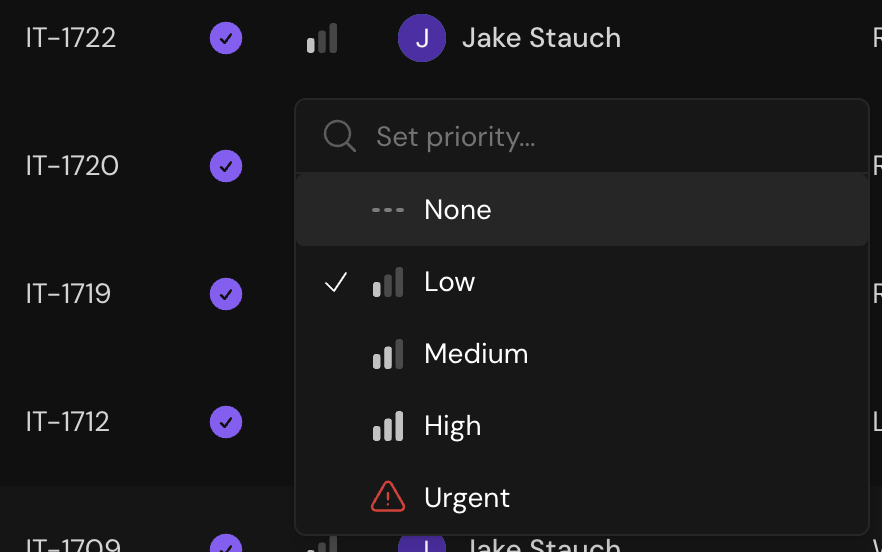
 Set ticket urgency levels to help your team prioritize work
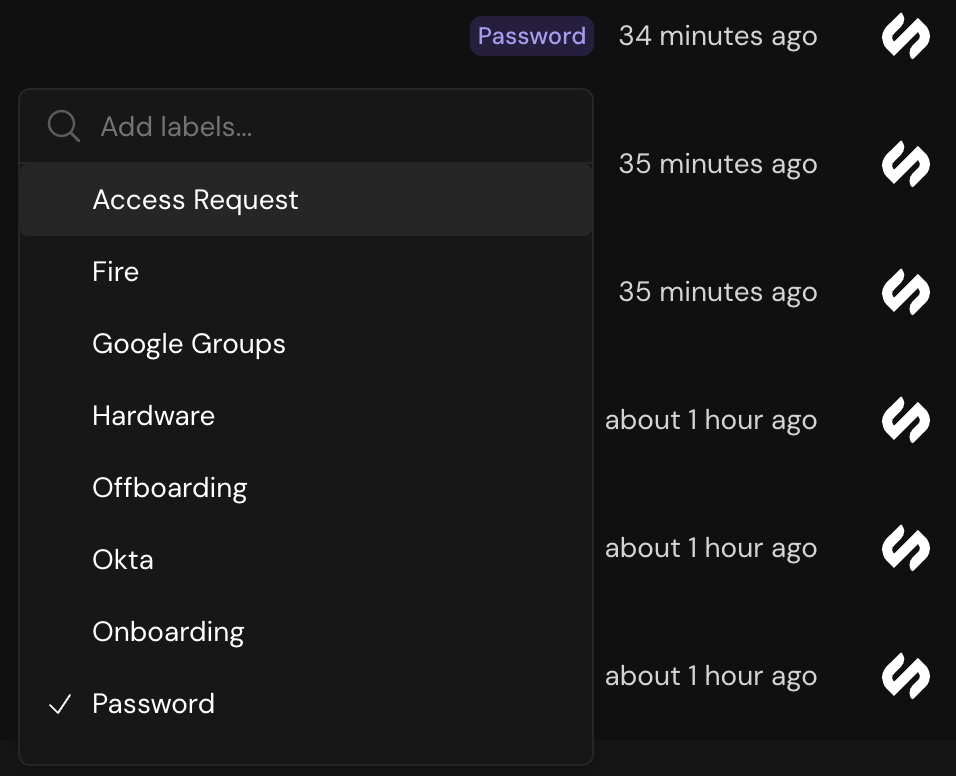
 Add descriptive labels for better organization and filtering
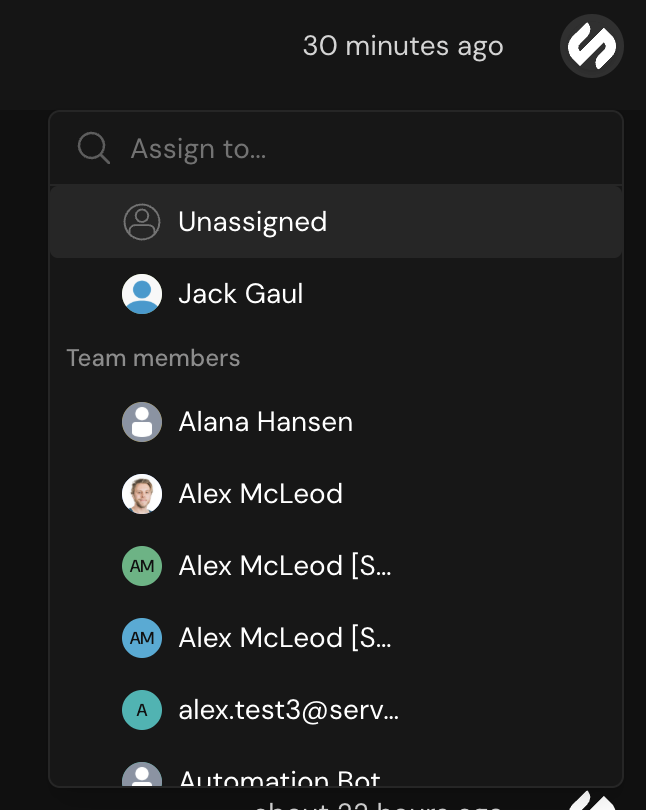
 Assign tickets to specific team members or let Serval route automatically
 ## Creating tickets
Tickets in Serval are created through natural language - simply submit your request in plain English. There are two ways tickets can be created:
### Through integrated messaging channels
When customers message you through connected channels like Slack, tickets are automatically created and mapped directly to the team assigned to that channel. Serval uses AI to:
* Extract the ticket title and description from the message
* Assign appropriate status and priority based on content
* Map the ticket to the channel's designated team (no automatic routing)
Direct messages to Serval in Slack are disabled by default but can be enabled in the Slack application settings. When enabled, DMs to Serval will use automatic routing based on team descriptions.
### Directly in Serval
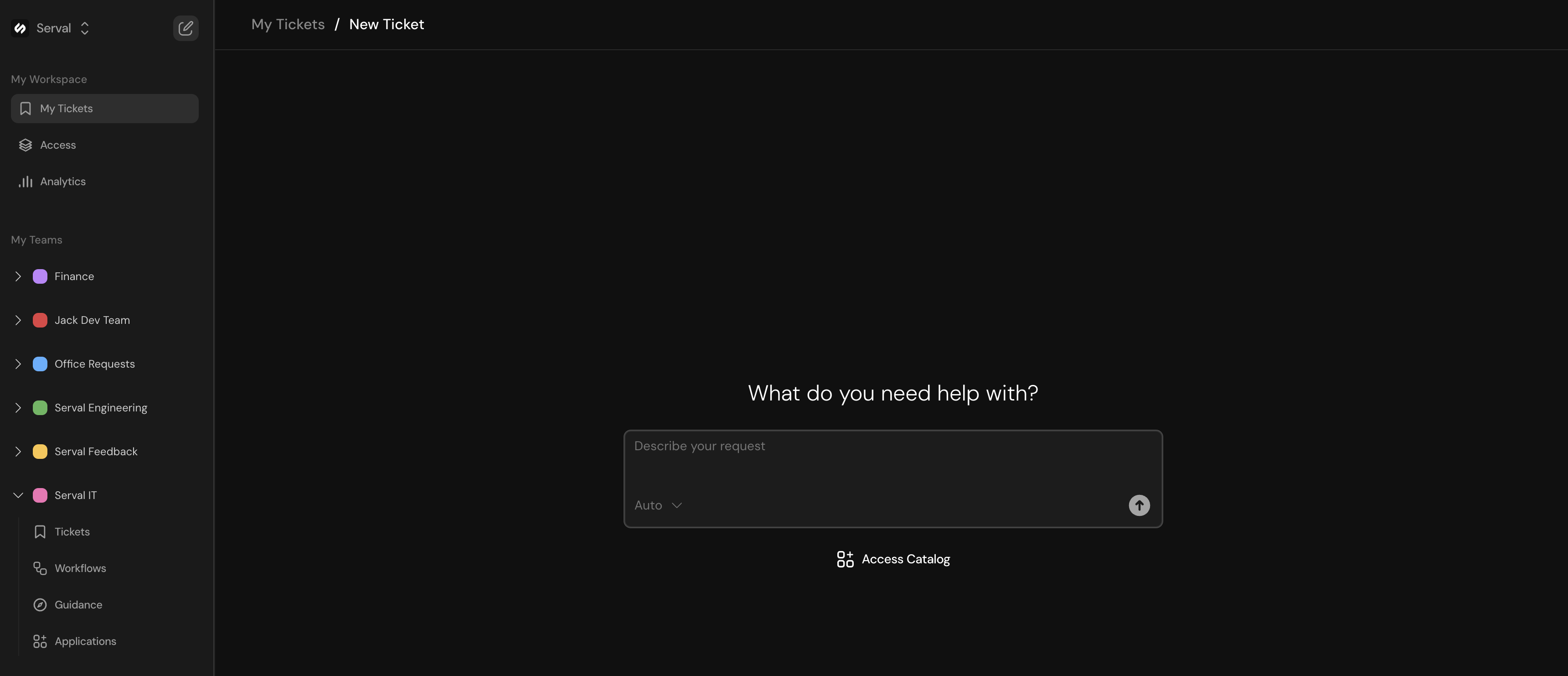
Create tickets by entering a chat message directly in the Serval interface. Simply type your request and Serval will:
* Parse your natural language request
* Create a ticket with appropriate details
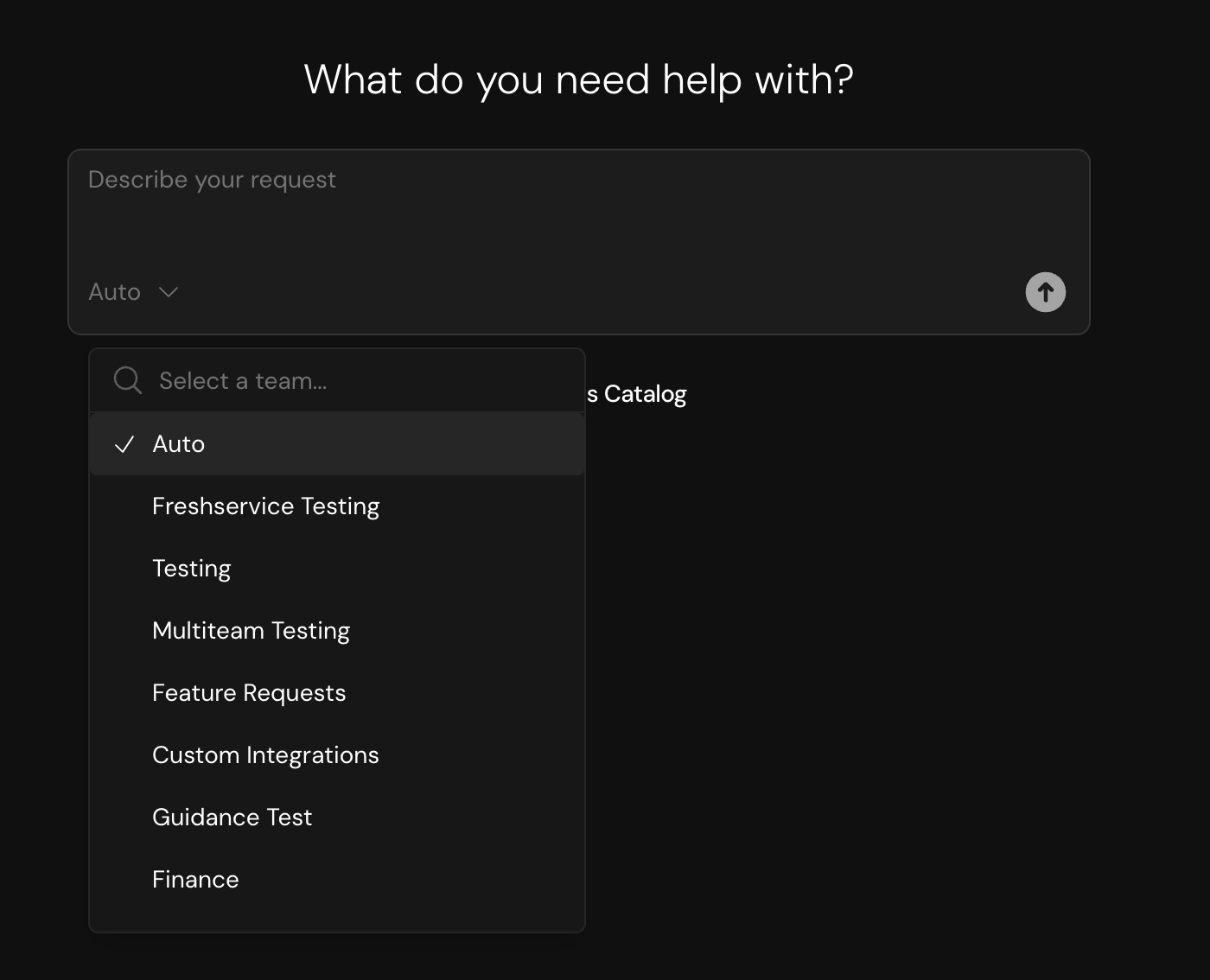
* Automatically route it to the right team based on content and team descriptions (configured in Work Settings)
* Allow you to manually select a specific team from the dropdown if you prefer
## Creating tickets
Tickets in Serval are created through natural language - simply submit your request in plain English. There are two ways tickets can be created:
### Through integrated messaging channels
When customers message you through connected channels like Slack, tickets are automatically created and mapped directly to the team assigned to that channel. Serval uses AI to:
* Extract the ticket title and description from the message
* Assign appropriate status and priority based on content
* Map the ticket to the channel's designated team (no automatic routing)
Direct messages to Serval in Slack are disabled by default but can be enabled in the Slack application settings. When enabled, DMs to Serval will use automatic routing based on team descriptions.
### Directly in Serval
Create tickets by entering a chat message directly in the Serval interface. Simply type your request and Serval will:
* Parse your natural language request
* Create a ticket with appropriate details
* Automatically route it to the right team based on content and team descriptions (configured in Work Settings)
* Allow you to manually select a specific team from the dropdown if you prefer
 ## Ticket lifecycle
Tickets enter the system either through manual creation or automatically via integrated messaging channels. Serval analyzes the content to set initial attributes.
Serval attempts to resolve the ticket using:
* Knowledge base articles
* Predefined guidance
* Relevant workflows
## Ticket lifecycle
Tickets enter the system either through manual creation or automatically via integrated messaging channels. Serval analyzes the content to set initial attributes.
Serval attempts to resolve the ticket using:
* Knowledge base articles
* Predefined guidance
* Relevant workflows
 If Serval cannot fully resolve the issue, it escalates to a human agent while providing context and suggested solutions.
Tickets are marked as resolved once the customer's issue is addressed. The resolution is logged for future reference and training.
If Serval cannot fully resolve the issue, it escalates to a human agent while providing context and suggested solutions.
Tickets are marked as resolved once the customer's issue is addressed. The resolution is logged for future reference and training.
 ## Working with tickets
### Ticket detail view
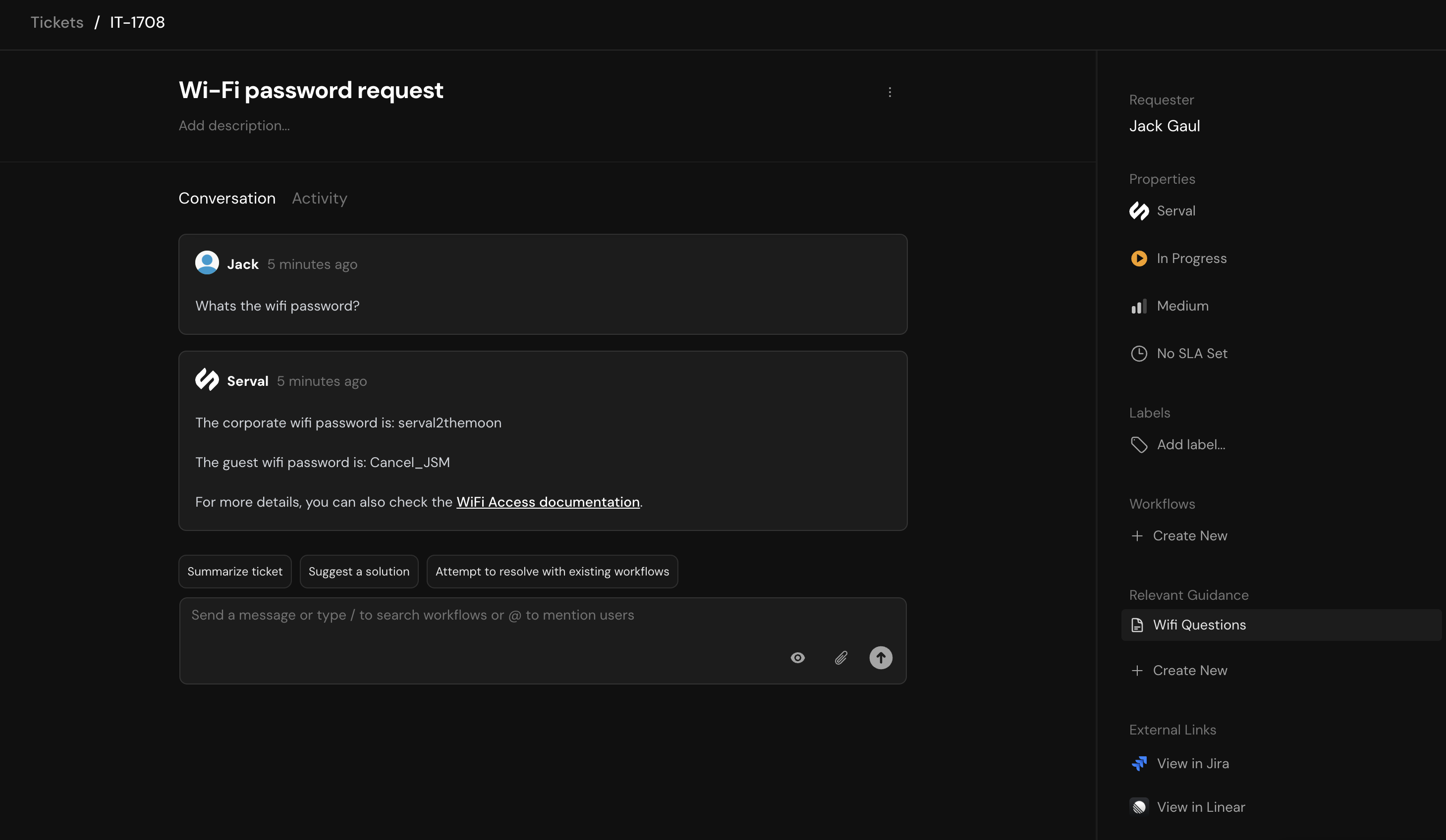
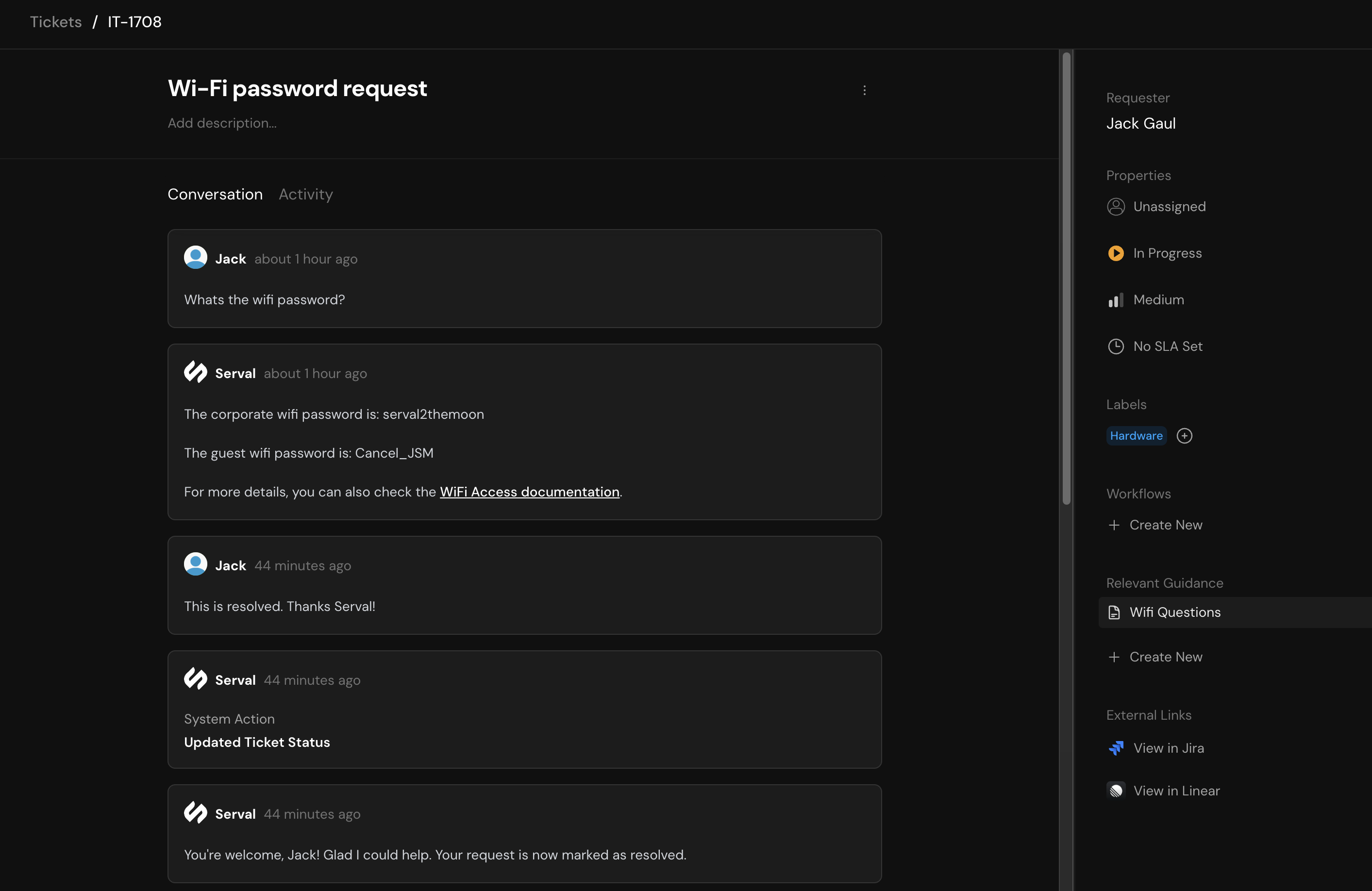
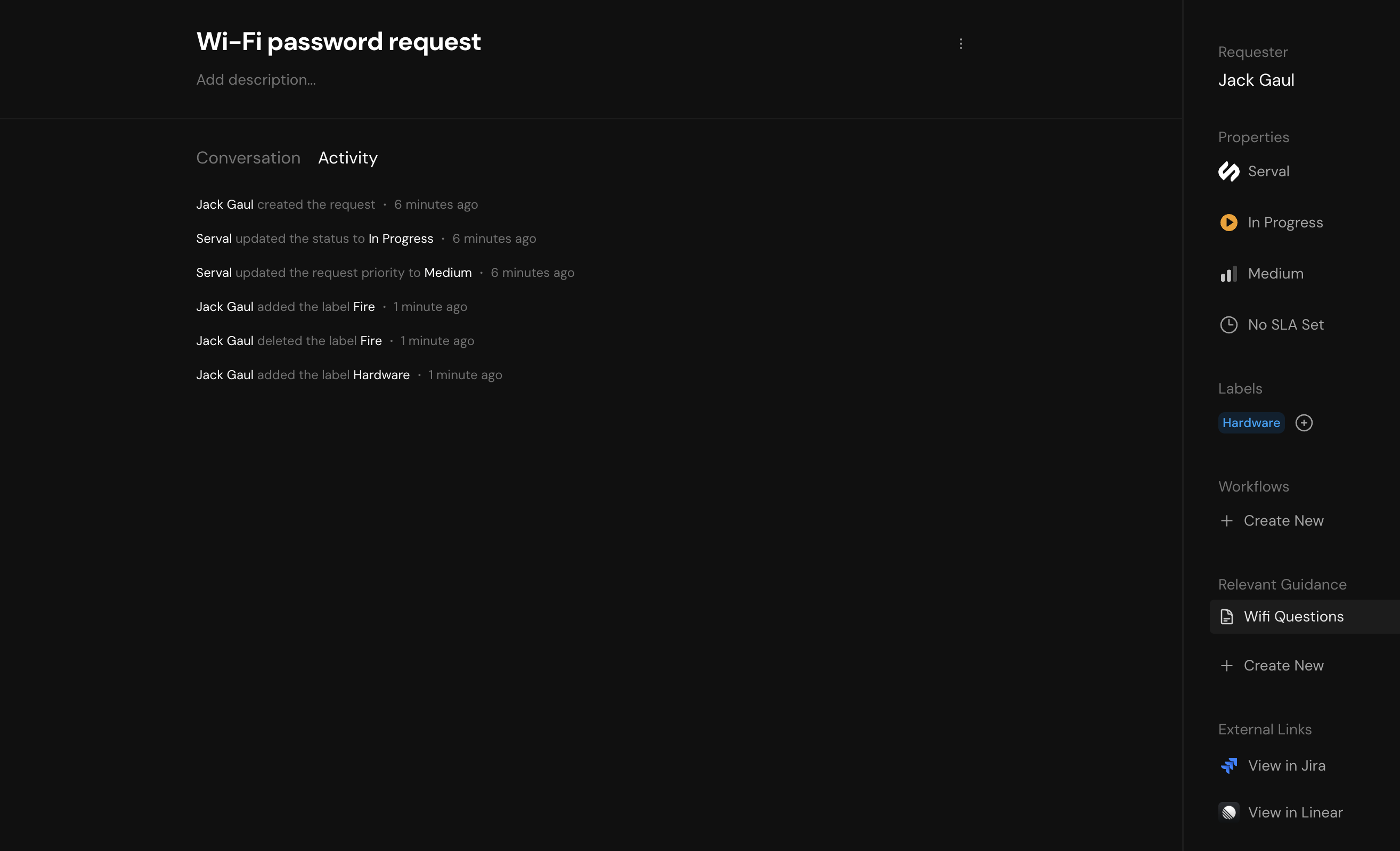
Opening a ticket reveals two main sections:
1. **Conversation tab** - Displays the full chat history between agents, Serval, and the customer
2. **Activity tab** - Shows a chronological log of all changes to ticket attributes
## Working with tickets
### Ticket detail view
Opening a ticket reveals two main sections:
1. **Conversation tab** - Displays the full chat history between agents, Serval, and the customer
2. **Activity tab** - Shows a chronological log of all changes to ticket attributes
 ### Managing tickets through chat
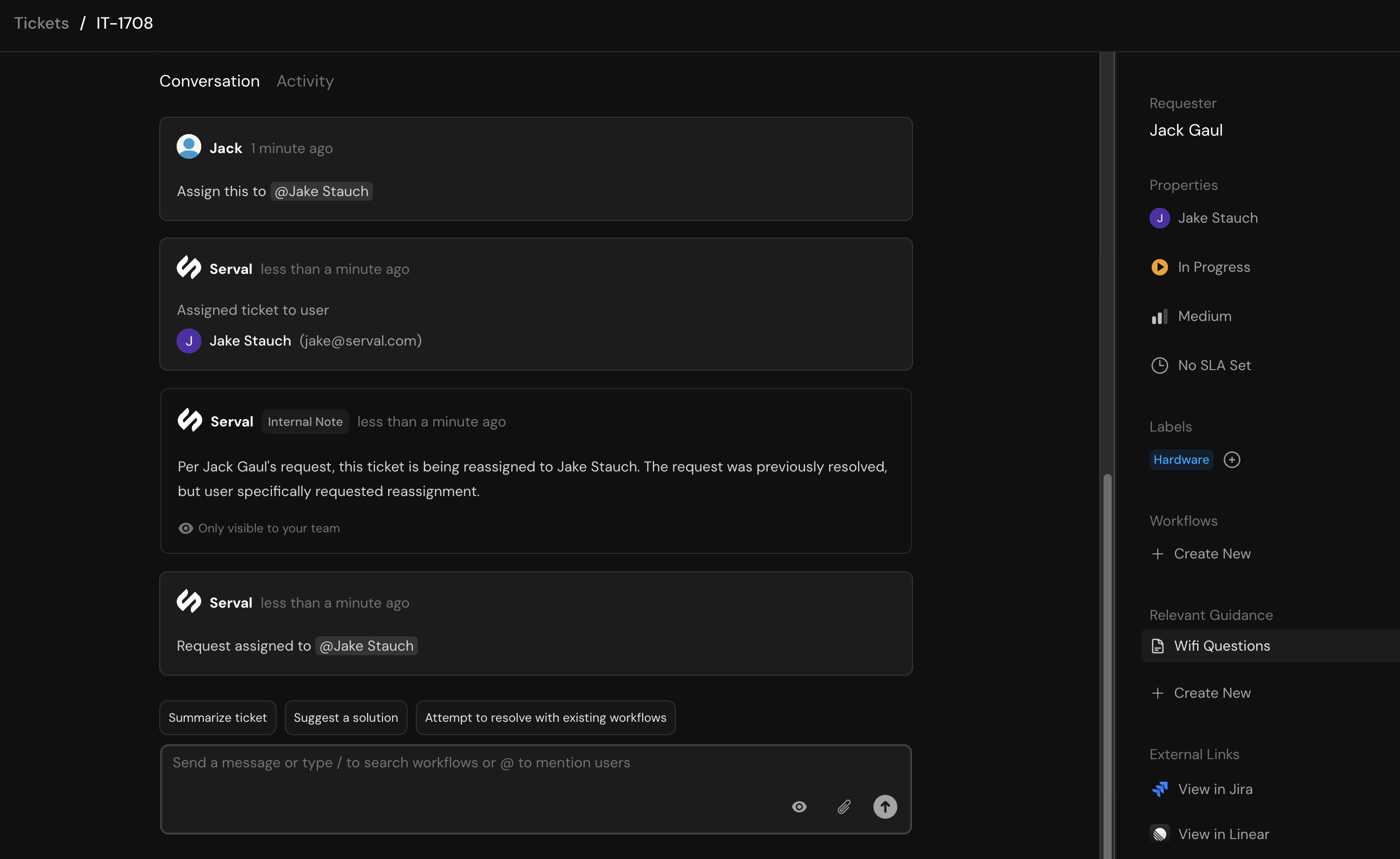
You can control ticket attributes directly through the chat interface using natural language commands:
Simply mention who should handle the ticket:
### Managing tickets through chat
You can control ticket attributes directly through the chat interface using natural language commands:
Simply mention who should handle the ticket:
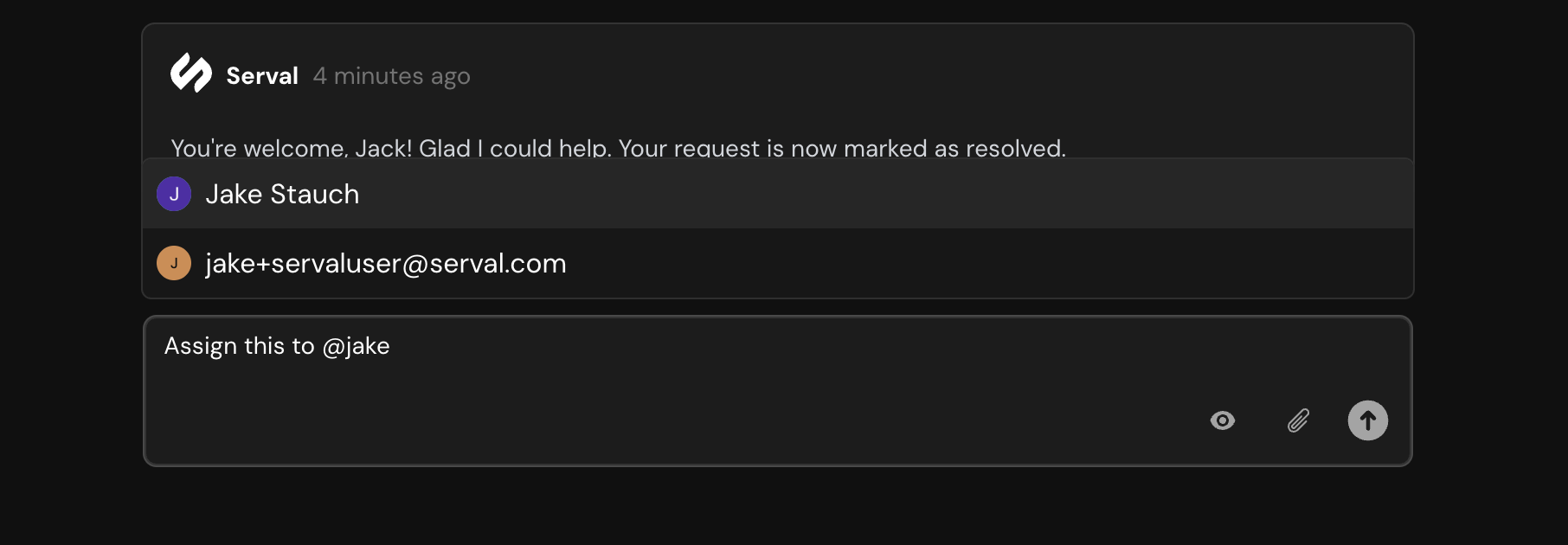
 Or use the @ mention feature:
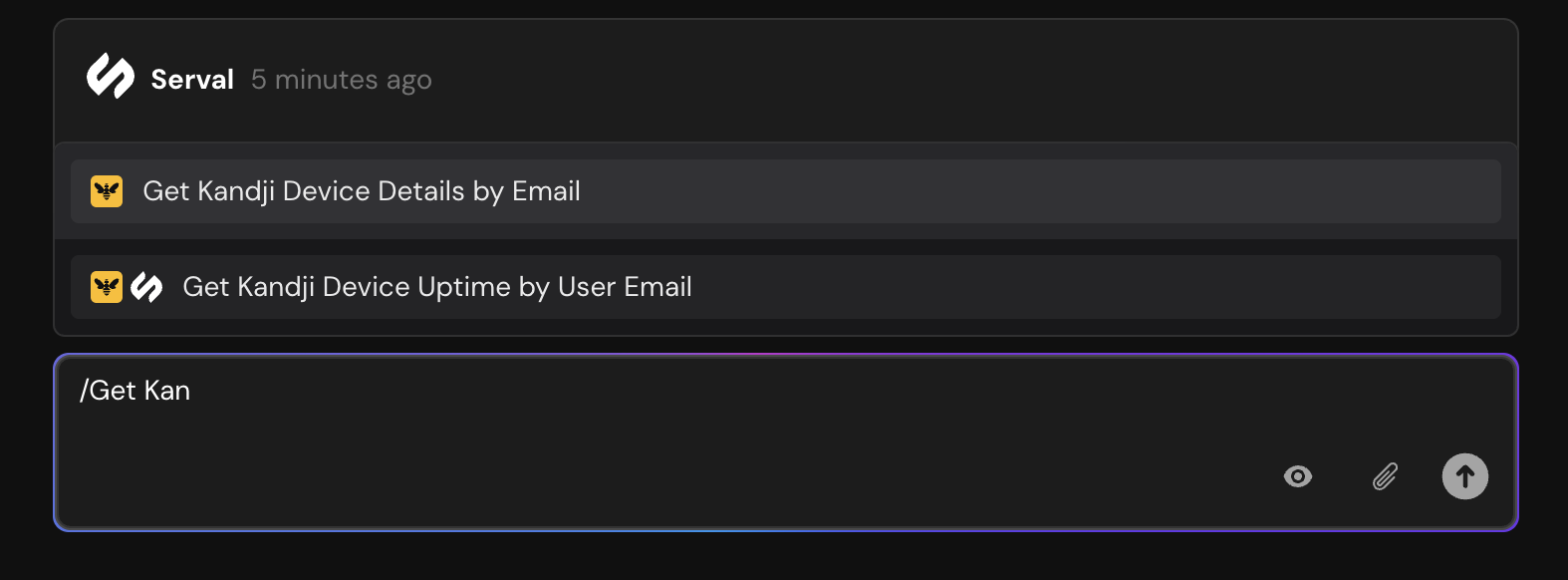
 Trigger workflows directly from the chat using slash commands:
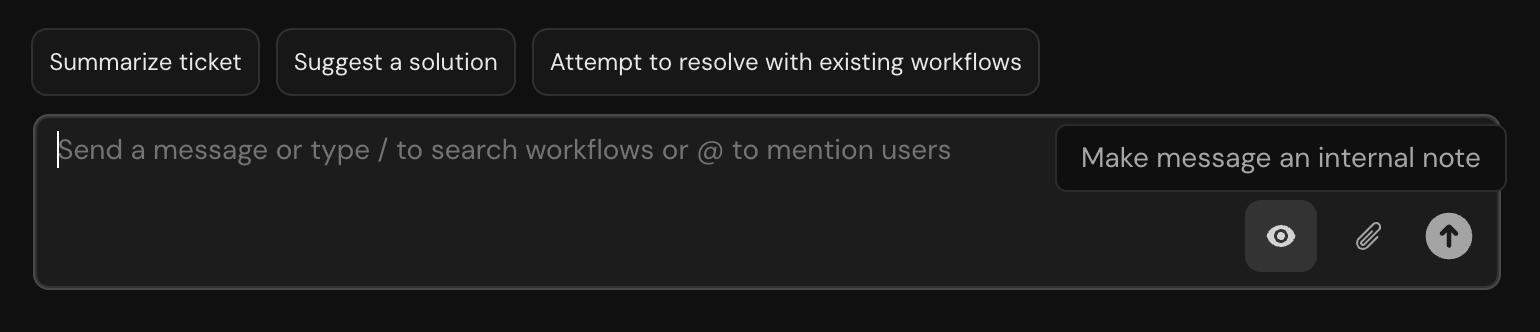
 Toggle between customer-visible messages and internal notes:
 ## Best practices
Define priority levels that align with your SLA requirements to ensure timely responses
Create a standardized labeling system to improve filtering and reporting
Let Serval handle your repetitive inquiries while your team focuses on complex issues
Review ticket analytics to identify bottlenecks and improve processes
## Integrations
Serval seamlessly syncs tickets with external systems. Links to third-party tickets appear at the bottom of the ticket detail view for easy cross-reference.
Connect Serval with your existing ticketing tools:
* Jira Service Management
* Zendesk
* Freshservice
* Linear
All ticket data is synchronized in real-time across connected systems, ensuring your team always has the latest information regardless of which tool they're using.
## Best practices
Define priority levels that align with your SLA requirements to ensure timely responses
Create a standardized labeling system to improve filtering and reporting
Let Serval handle your repetitive inquiries while your team focuses on complex issues
Review ticket analytics to identify bottlenecks and improve processes
## Integrations
Serval seamlessly syncs tickets with external systems. Links to third-party tickets appear at the bottom of the ticket detail view for easy cross-reference.
Connect Serval with your existing ticketing tools:
* Jira Service Management
* Zendesk
* Freshservice
* Linear
All ticket data is synchronized in real-time across connected systems, ensuring your team always has the latest information regardless of which tool they're using.