> ## Documentation Index
> Fetch the complete documentation index at: https://serval-hannah-docs-custom-access.mintlify.site/llms.txt
> Use this file to discover all available pages before exploring further.
# Attributes and Settings
> Configure and manage ticket attributes to organize and track support requests effectively
Serval provides a comprehensive set of attributes to help you organize, prioritize, and track support tickets. This guide covers how to configure and use these attributes for your team.
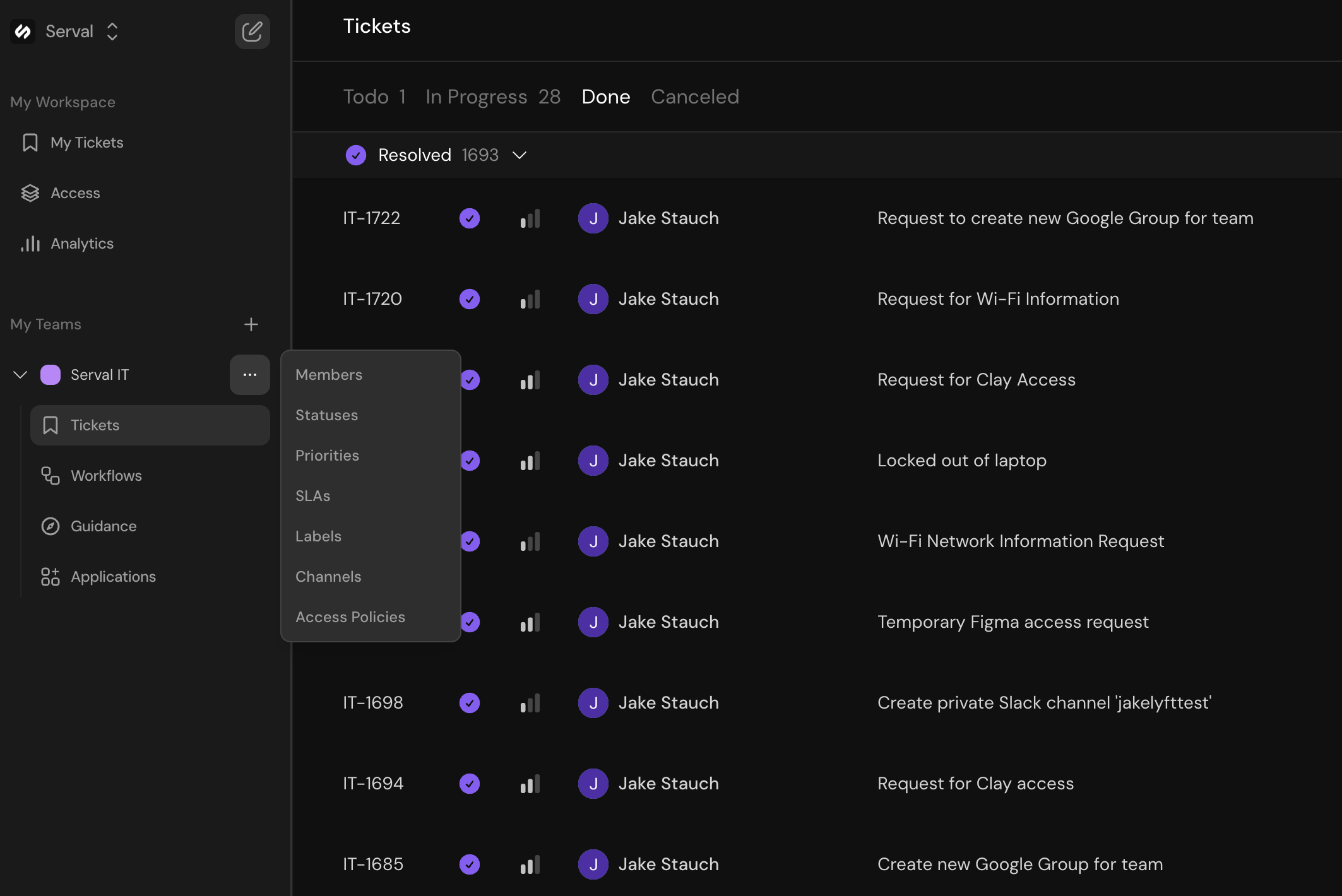
## Accessing Team Settings
To configure ticket attributes for your team, navigate to the team settings panel:
 ## Ticket Attributes Overview
When viewing a ticket, the right-hand panel displays all ticket attributes:
Brief summary of the ticket's main issue or request
Detailed explanation of the problem or request
The person who created the ticket
The team member responsible for resolving the ticket
Current state of the ticket within your workflow
Urgency level that determines SLA requirements
Service Level Agreement timeline for resolution
Custom tags for categorization and filtering
Automated processes that have run on the ticket
Knowledge base articles Serval identified as helpful
Connections to third-party ticketing systems
By default, tickets are assigned to Serval. The AI will continue working on the ticket until it either resolves the issue or escalates to a human agent when it cannot find a solution.
## Configuring Statuses
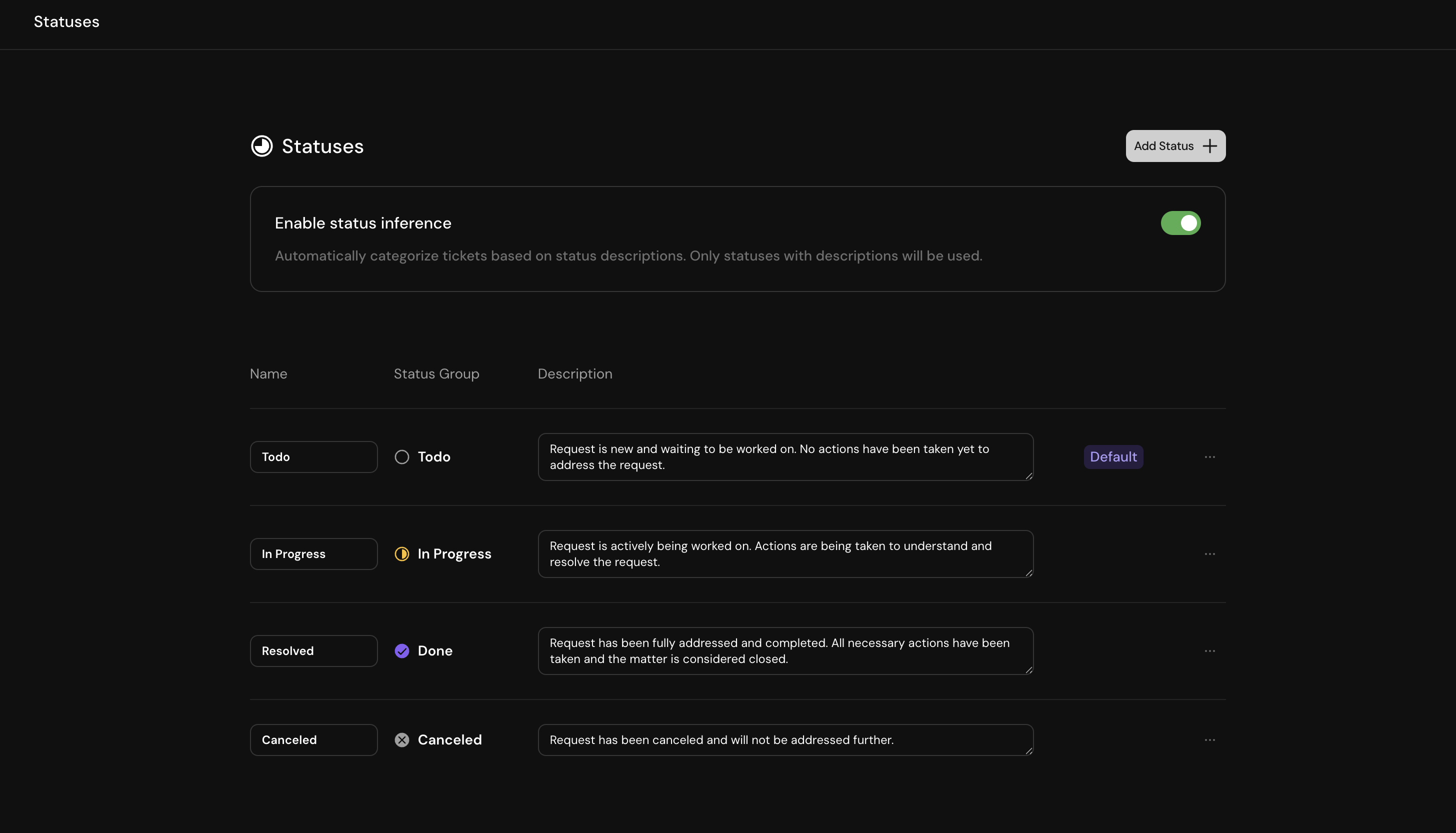
Statuses help track the progress of tickets through your support workflow. Each team can create custom statuses tailored to their specific needs.
## Ticket Attributes Overview
When viewing a ticket, the right-hand panel displays all ticket attributes:
Brief summary of the ticket's main issue or request
Detailed explanation of the problem or request
The person who created the ticket
The team member responsible for resolving the ticket
Current state of the ticket within your workflow
Urgency level that determines SLA requirements
Service Level Agreement timeline for resolution
Custom tags for categorization and filtering
Automated processes that have run on the ticket
Knowledge base articles Serval identified as helpful
Connections to third-party ticketing systems
By default, tickets are assigned to Serval. The AI will continue working on the ticket until it either resolves the issue or escalates to a human agent when it cannot find a solution.
## Configuring Statuses
Statuses help track the progress of tickets through your support workflow. Each team can create custom statuses tailored to their specific needs.
 ### Status Categories
All custom statuses must be assigned to one of four categories:
Tickets that haven't been started yet
Tickets actively being worked on
Completed tickets
Tickets that won't be completed
### Creating a New Status
To create a custom status:
### Status Categories
All custom statuses must be assigned to one of four categories:
Tickets that haven't been started yet
Tickets actively being worked on
Completed tickets
Tickets that won't be completed
### Creating a New Status
To create a custom status:
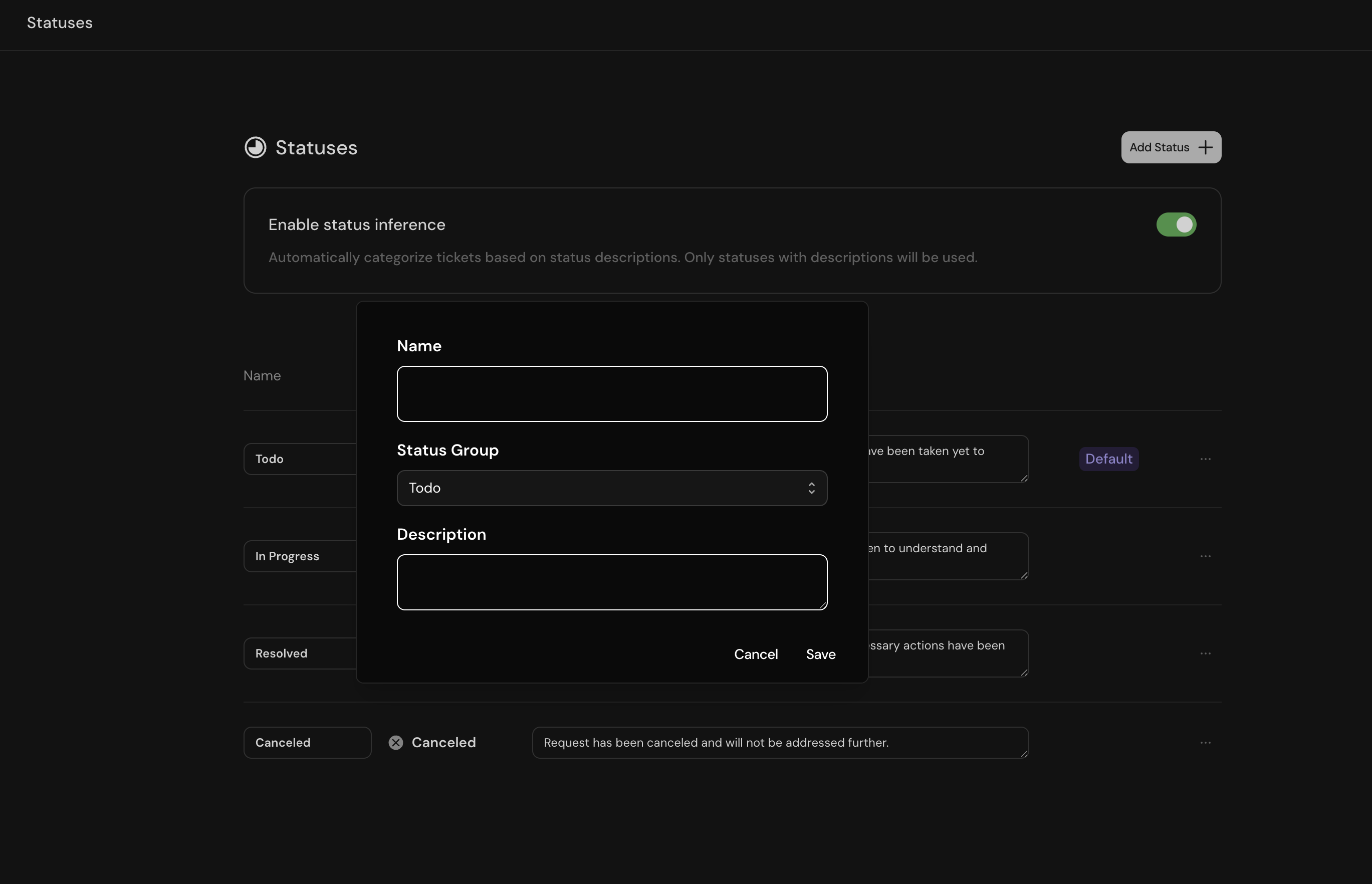 1. Click **Add Status** on the statuses page
2. Enter a descriptive name for the status
3. Select the appropriate status category
4. Provide a detailed description (this helps Serval's AI assign statuses automatically)
5. Click **Create**
Serval uses AI to automatically assign statuses based on ticket content. The more descriptive your status definitions, the more accurate the automatic assignments will be. You can disable this feature using the toggle on the statuses page.
### Setting a Default Status
Every team must have at least one "To Do" status set as default. This will be applied to all new tickets:
1. Click **Add Status** on the statuses page
2. Enter a descriptive name for the status
3. Select the appropriate status category
4. Provide a detailed description (this helps Serval's AI assign statuses automatically)
5. Click **Create**
Serval uses AI to automatically assign statuses based on ticket content. The more descriptive your status definitions, the more accurate the automatic assignments will be. You can disable this feature using the toggle on the statuses page.
### Setting a Default Status
Every team must have at least one "To Do" status set as default. This will be applied to all new tickets:
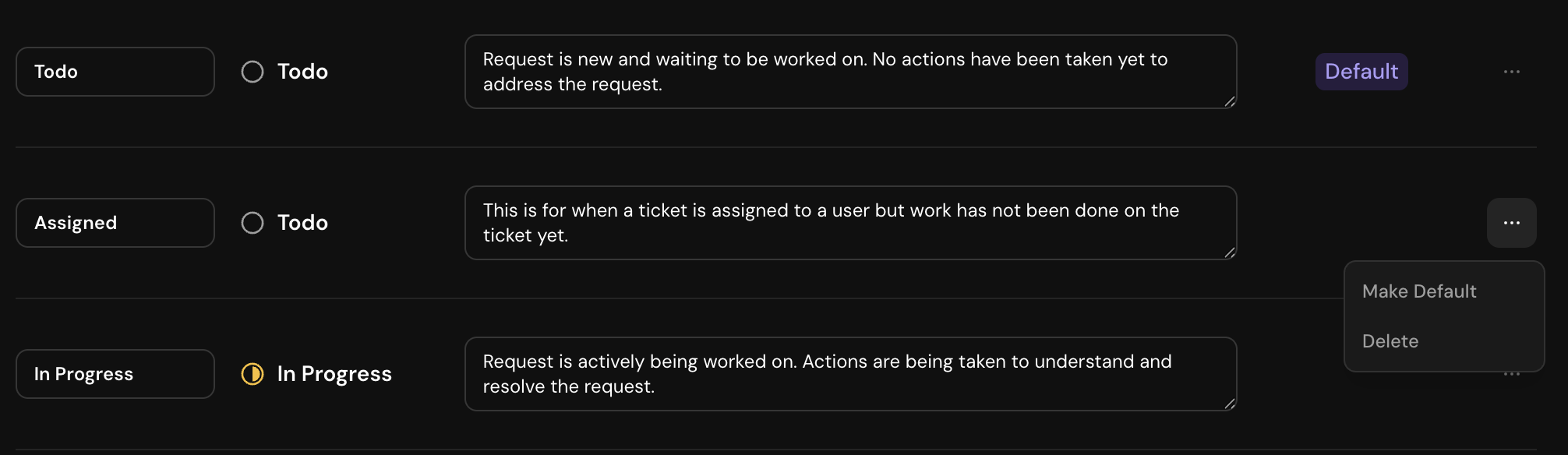 The result after changing the default status:
 ## Managing Priorities
Priorities determine how urgently tickets should be addressed and trigger corresponding SLA rules.
## Managing Priorities
Priorities determine how urgently tickets should be addressed and trigger corresponding SLA rules.
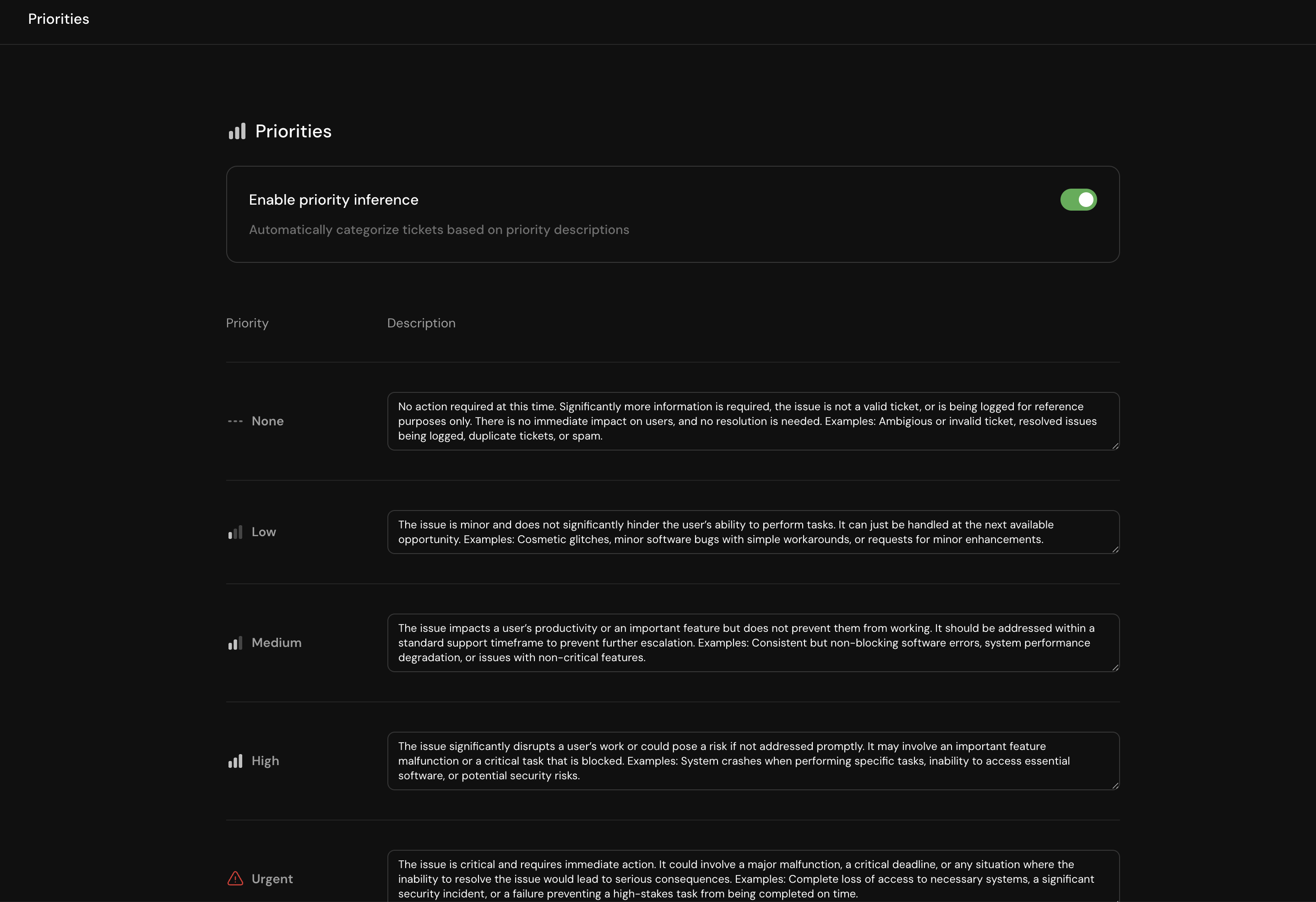 ### Configuring Priorities
When setting up priorities:
* **Name**: Choose clear, meaningful priority levels (e.g., Critical, High, Medium, Low)
* **Description**: Provide detailed criteria for when each priority should be applied
* **Examples**: Include real-world scenarios to improve AI accuracy
Serval's AI analyzes ticket messages and automatically assigns priorities based on your descriptions. The more specific your criteria and examples, the better the automatic prioritization will work.
## SLA Rules
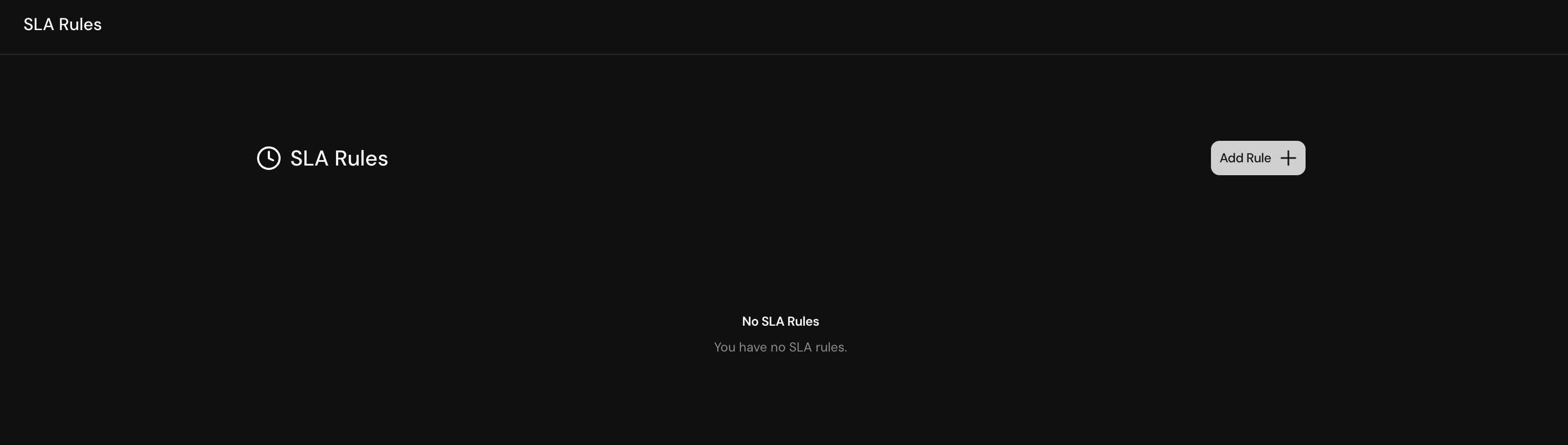
Service Level Agreements ensure tickets are resolved within appropriate timeframes based on their priority.
### Configuring Priorities
When setting up priorities:
* **Name**: Choose clear, meaningful priority levels (e.g., Critical, High, Medium, Low)
* **Description**: Provide detailed criteria for when each priority should be applied
* **Examples**: Include real-world scenarios to improve AI accuracy
Serval's AI analyzes ticket messages and automatically assigns priorities based on your descriptions. The more specific your criteria and examples, the better the automatic prioritization will work.
## SLA Rules
Service Level Agreements ensure tickets are resolved within appropriate timeframes based on their priority.
 ### Creating SLA Rules
SLA rules map priorities to resolution timeframes:
### Creating SLA Rules
SLA rules map priorities to resolution timeframes:
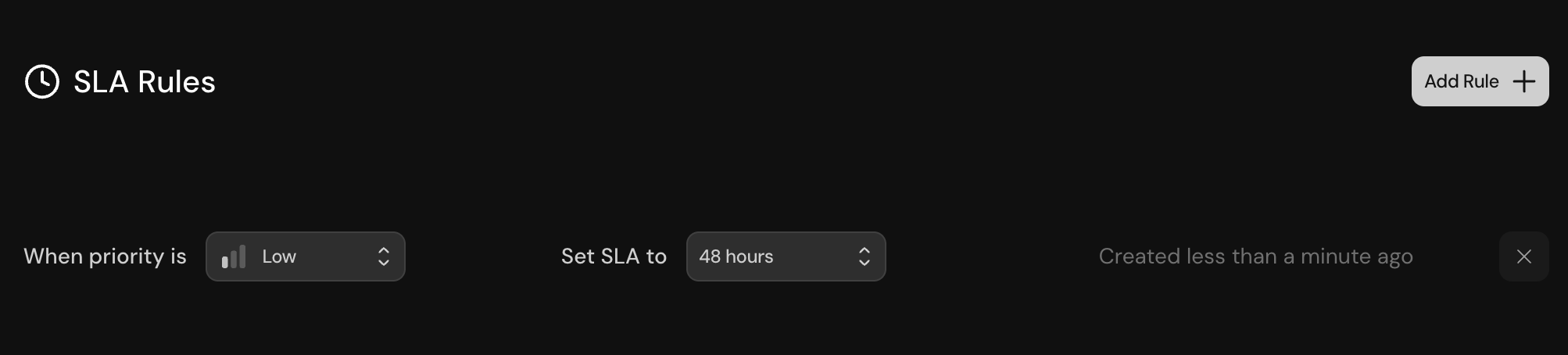 Choose which priority level this SLA rule applies to
Define the maximum time allowed for resolution
Give the SLA rule a descriptive name
Once a ticket's priority is set (either manually or by AI), the corresponding SLA timer starts immediately. You can manually override both priority and SLA using the dropdowns in the ticket's side panel.
## Labels
Labels provide a flexible way to categorize and visually organize tickets in your queue.
Choose which priority level this SLA rule applies to
Define the maximum time allowed for resolution
Give the SLA rule a descriptive name
Once a ticket's priority is set (either manually or by AI), the corresponding SLA timer starts immediately. You can manually override both priority and SLA using the dropdowns in the ticket's side panel.
## Labels
Labels provide a flexible way to categorize and visually organize tickets in your queue.
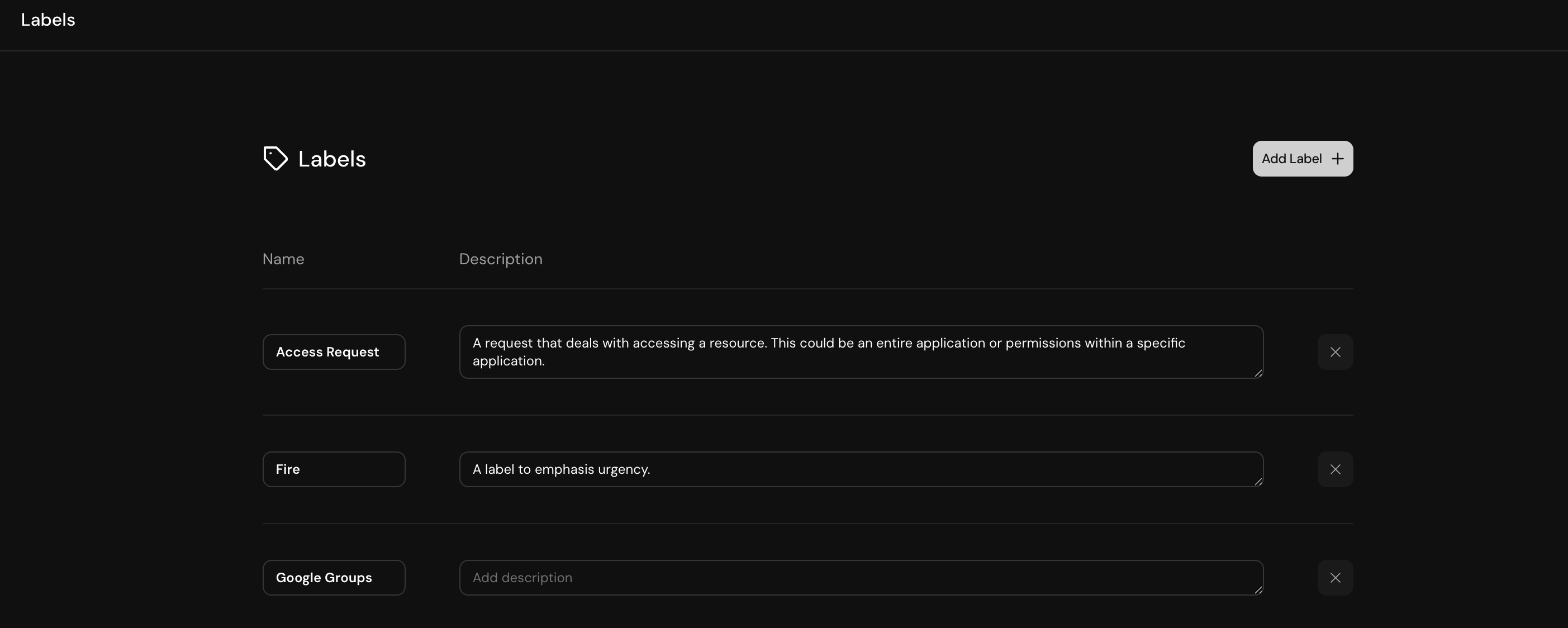 ### Creating Labels
To add a new label:
1. Click **Add Label** on the labels page
2. Enter a name for the label
3. Choose a color for visual identification
4. Provide a description to help team members use labels consistently
Labels appear as colored tags in the ticket list view, making it easy to scan and filter tickets at a glance.
## Communication Channels
Channels define how tickets enter your Serval workspace, whether through Slack, email, or other integrations.
### Creating Labels
To add a new label:
1. Click **Add Label** on the labels page
2. Enter a name for the label
3. Choose a color for visual identification
4. Provide a description to help team members use labels consistently
Labels appear as colored tags in the ticket list view, making it easy to scan and filter tickets at a glance.
## Communication Channels
Channels define how tickets enter your Serval workspace, whether through Slack, email, or other integrations.
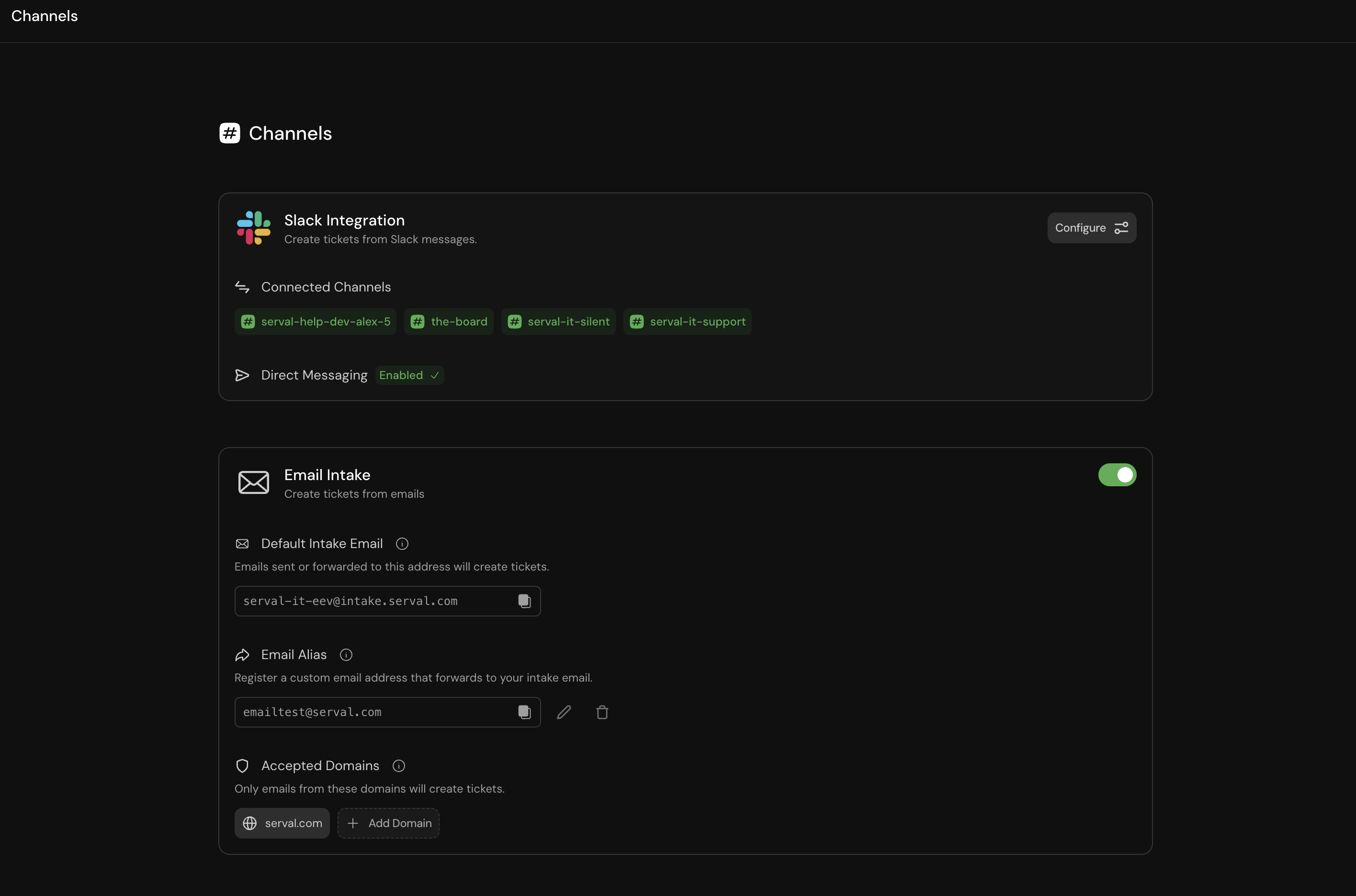 ### Slack Integration
Configure Slack channels to receive tickets directly within your workspace:
### Slack Integration
Configure Slack channels to receive tickets directly within your workspace:
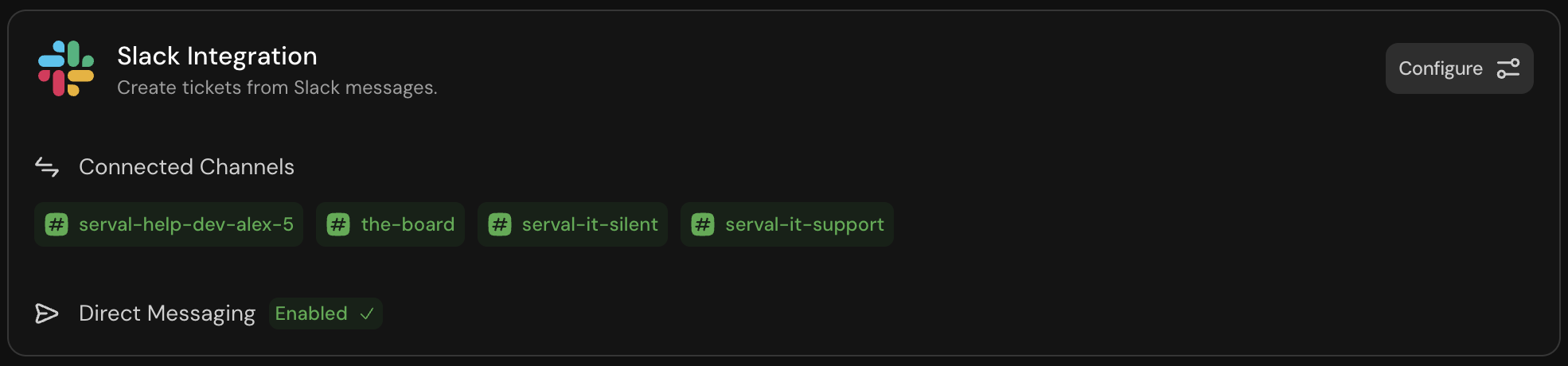 Serval supports both channel-based ticketing and direct messages. Users can create tickets by messaging the Serval app directly in Slack.
### Email Intake
Set up email channels to accept tickets from specific domains:
Serval supports both channel-based ticketing and direct messages. Users can create tickets by messaging the Serval app directly in Slack.
### Email Intake
Set up email channels to accept tickets from specific domains:
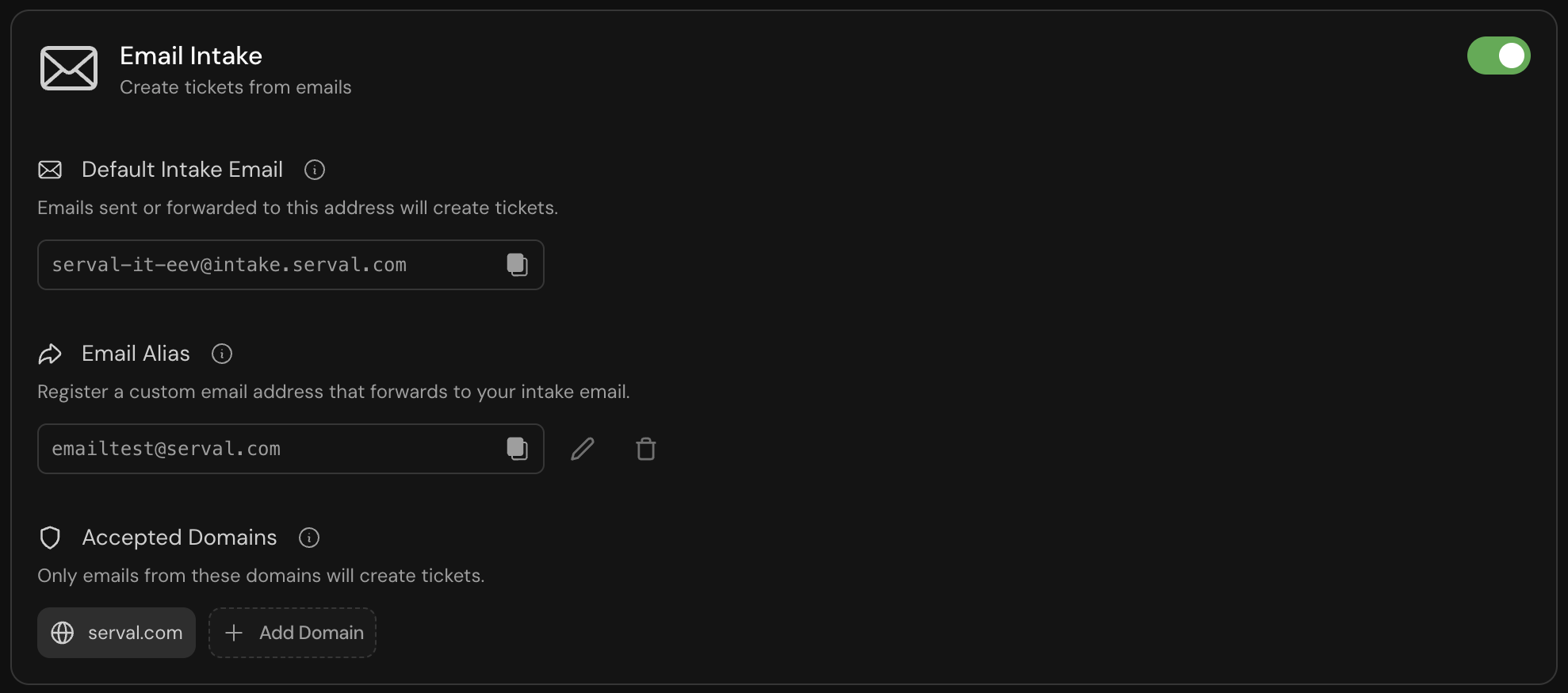 Define which email domains can create tickets
Map the Serval-provided email address to your preferred domain alias
Send a test email to verify the setup works correctly
## Best Practices
* Create statuses that reflect your actual workflow stages
* Use clear, action-oriented names (e.g., "Awaiting Customer Response" instead of "Pending")
* Provide detailed descriptions with examples to improve AI accuracy
* Regularly review and update status definitions based on usage patterns
* Define priorities based on business impact, not just urgency
* Include specific criteria like affected user count, revenue impact, or system criticality
* Use examples from real incidents to train the AI
* Align priority levels with your SLA commitments
* Create a consistent labeling taxonomy across teams
* Use labels for categorization that doesn't fit other attributes (e.g., product area, customer segment)
* Limit the number of labels to maintain usability
* Document label usage guidelines for your team
* Configure separate channels for different types of requests
* Use descriptive channel names that guide users to the right place
* Monitor channel usage to identify opportunities for consolidation or expansion
* Set up auto-routing rules with strong team descriptions
## Next Steps
Now that you've configured your ticket attributes, explore these related features:
Automate ticket handling with custom workflows
Learn how to work with tickets in Serval
Define which email domains can create tickets
Map the Serval-provided email address to your preferred domain alias
Send a test email to verify the setup works correctly
## Best Practices
* Create statuses that reflect your actual workflow stages
* Use clear, action-oriented names (e.g., "Awaiting Customer Response" instead of "Pending")
* Provide detailed descriptions with examples to improve AI accuracy
* Regularly review and update status definitions based on usage patterns
* Define priorities based on business impact, not just urgency
* Include specific criteria like affected user count, revenue impact, or system criticality
* Use examples from real incidents to train the AI
* Align priority levels with your SLA commitments
* Create a consistent labeling taxonomy across teams
* Use labels for categorization that doesn't fit other attributes (e.g., product area, customer segment)
* Limit the number of labels to maintain usability
* Document label usage guidelines for your team
* Configure separate channels for different types of requests
* Use descriptive channel names that guide users to the right place
* Monitor channel usage to identify opportunities for consolidation or expansion
* Set up auto-routing rules with strong team descriptions
## Next Steps
Now that you've configured your ticket attributes, explore these related features:
Automate ticket handling with custom workflows
Learn how to work with tickets in Serval