> ## Documentation Index
> Fetch the complete documentation index at: https://serval-hannah-docs-custom-access.mintlify.site/llms.txt
> Use this file to discover all available pages before exploring further.
# Workflow Versioning
> Learn how to manage and restore different versions of your workflows
# Workflow Versioning
Serval automatically tracks all published versions of your workflows, allowing you to view historical changes and restore previous versions when needed.
## Viewing Workflow Versions
Once you've published changes to a workflow, you can access its version history by clicking the **Latest version** button next to the run button in the top right corner of the workflow builder.
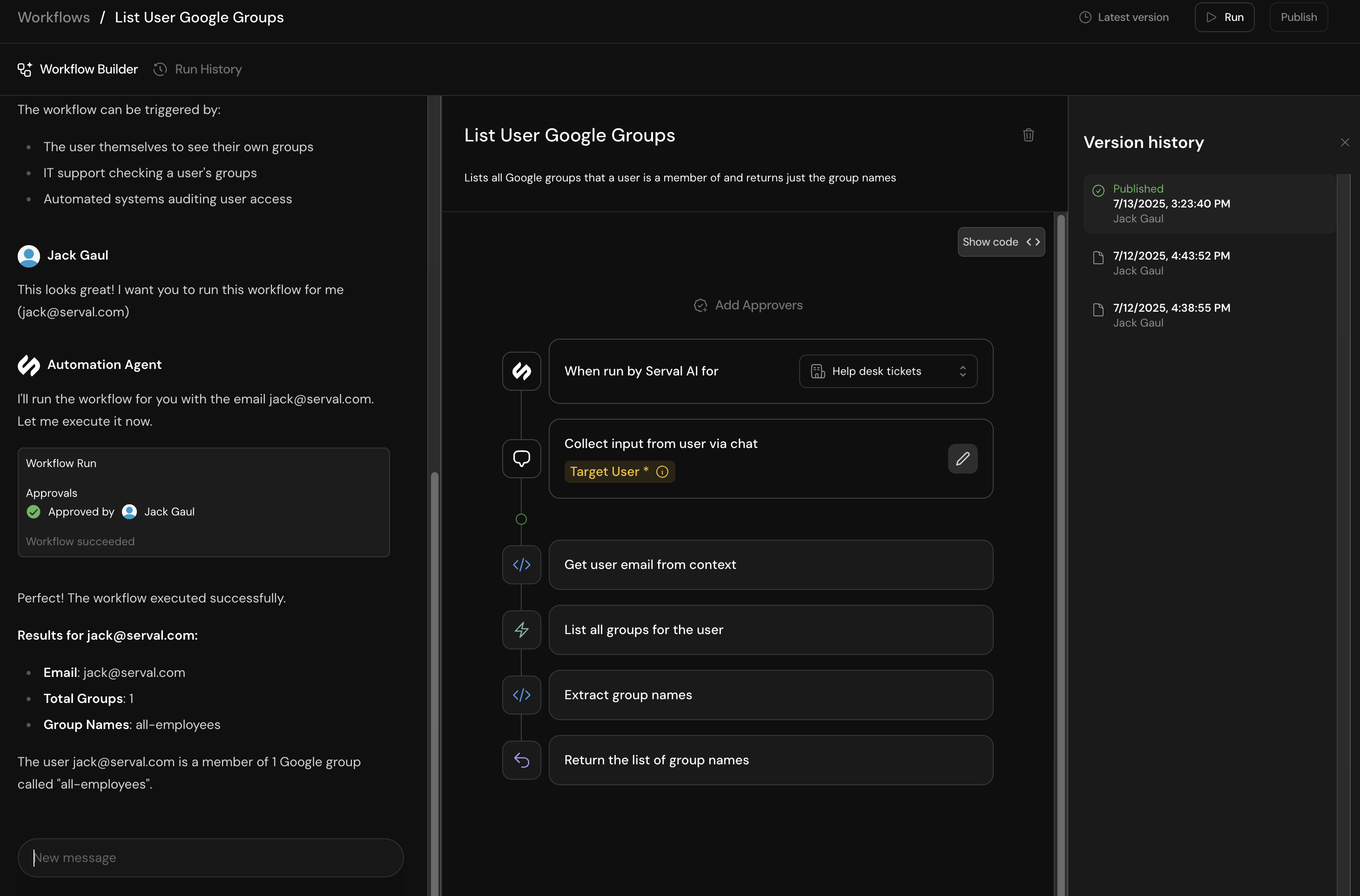
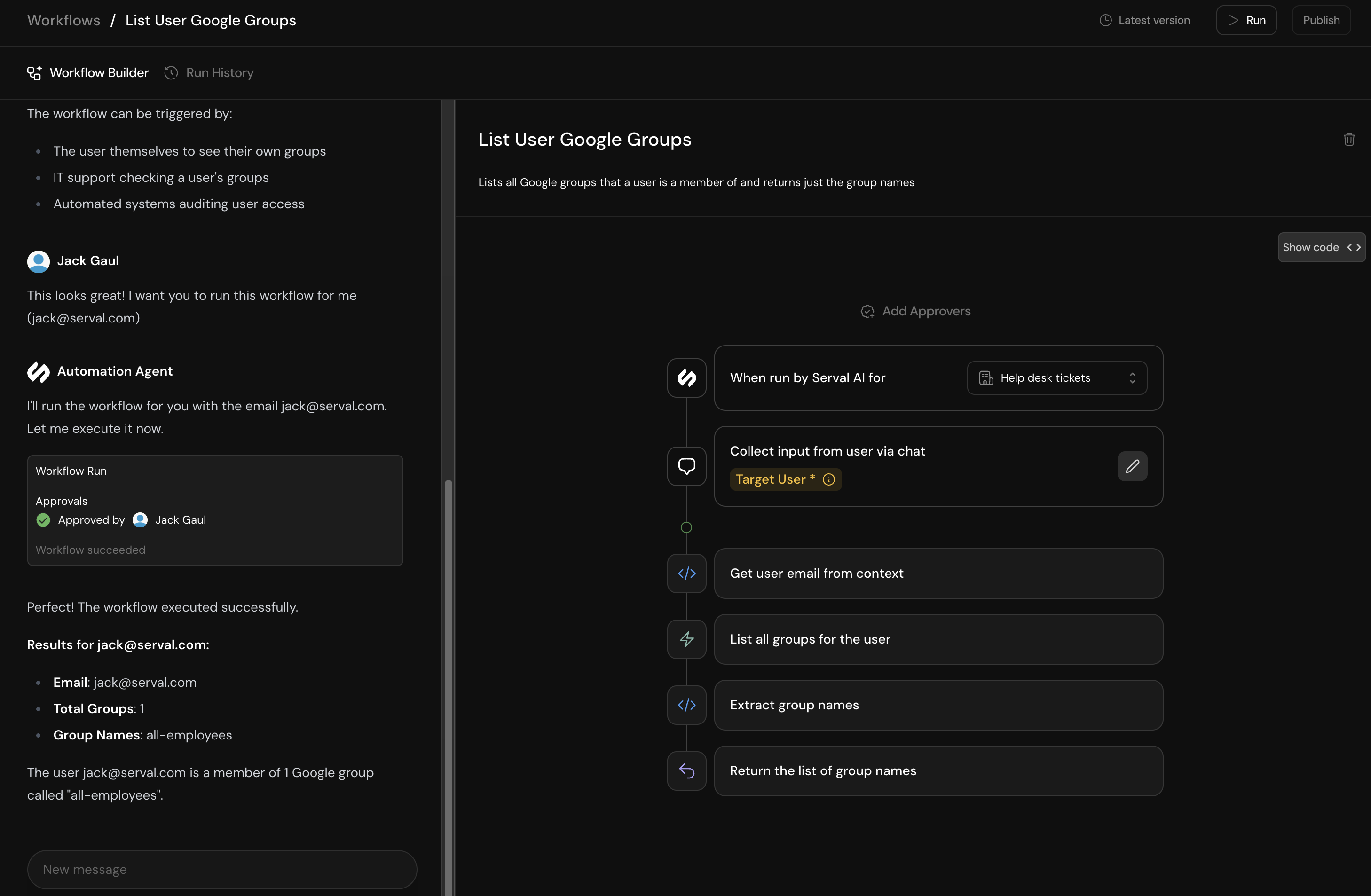 Clicking this button opens a sidebar displaying all historical versions of your workflow, including:
* Version numbers
* Publication dates and times
* Who published each version
Clicking this button opens a sidebar displaying all historical versions of your workflow, including:
* Version numbers
* Publication dates and times
* Who published each version
 ## Restoring Previous Versions
If you need to revert to an earlier version of your workflow, you can easily restore it:
1. Click on the version you want to restore from the version history sidebar
2. The selected version will load in the builder, and you'll see a **Restore** button in place of the usual Publish button
## Restoring Previous Versions
If you need to revert to an earlier version of your workflow, you can easily restore it:
1. Click on the version you want to restore from the version history sidebar
2. The selected version will load in the builder, and you'll see a **Restore** button in place of the usual Publish button
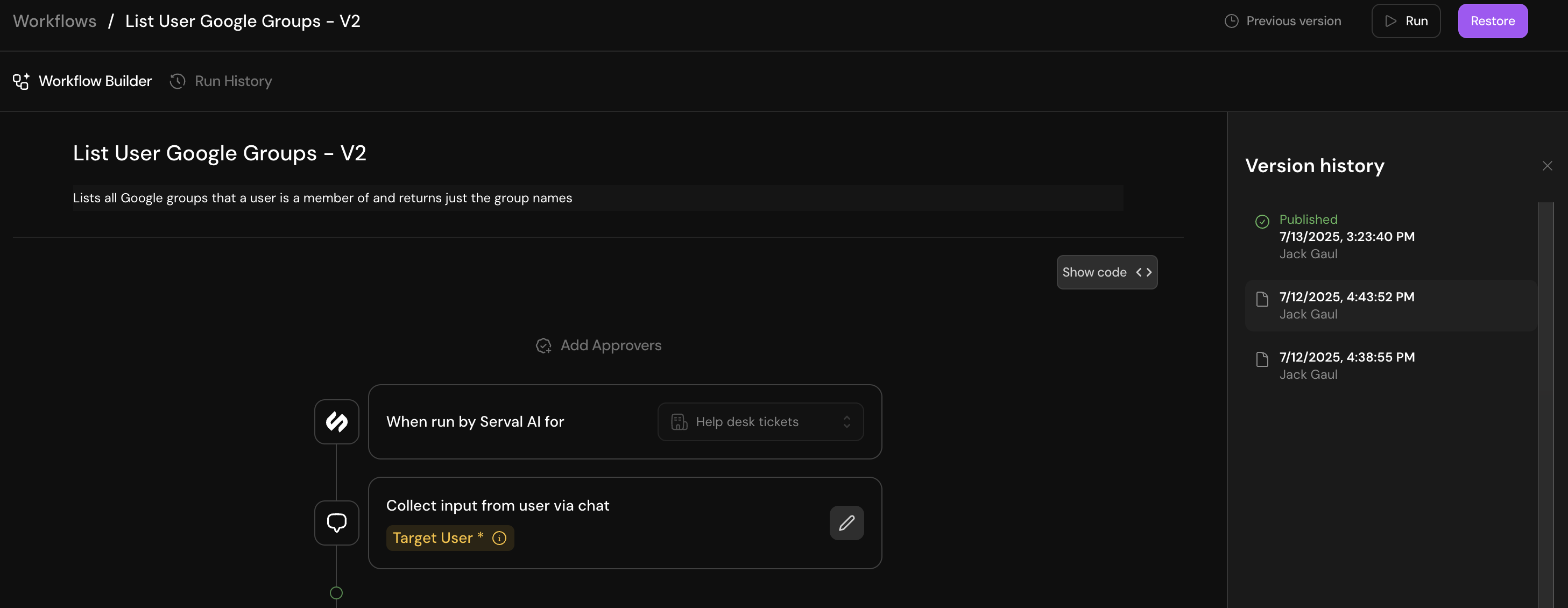 3. Click the **Restore** button to create a new version based on the selected historical version
## Working with Restored Versions
When you restore a previous version:
* A new version is created at the top of the version list
* This new version is identical to the historical version you selected
* You can either publish it immediately or make additional modifications before publishing
3. Click the **Restore** button to create a new version based on the selected historical version
## Working with Restored Versions
When you restore a previous version:
* A new version is created at the top of the version list
* This new version is identical to the historical version you selected
* You can either publish it immediately or make additional modifications before publishing
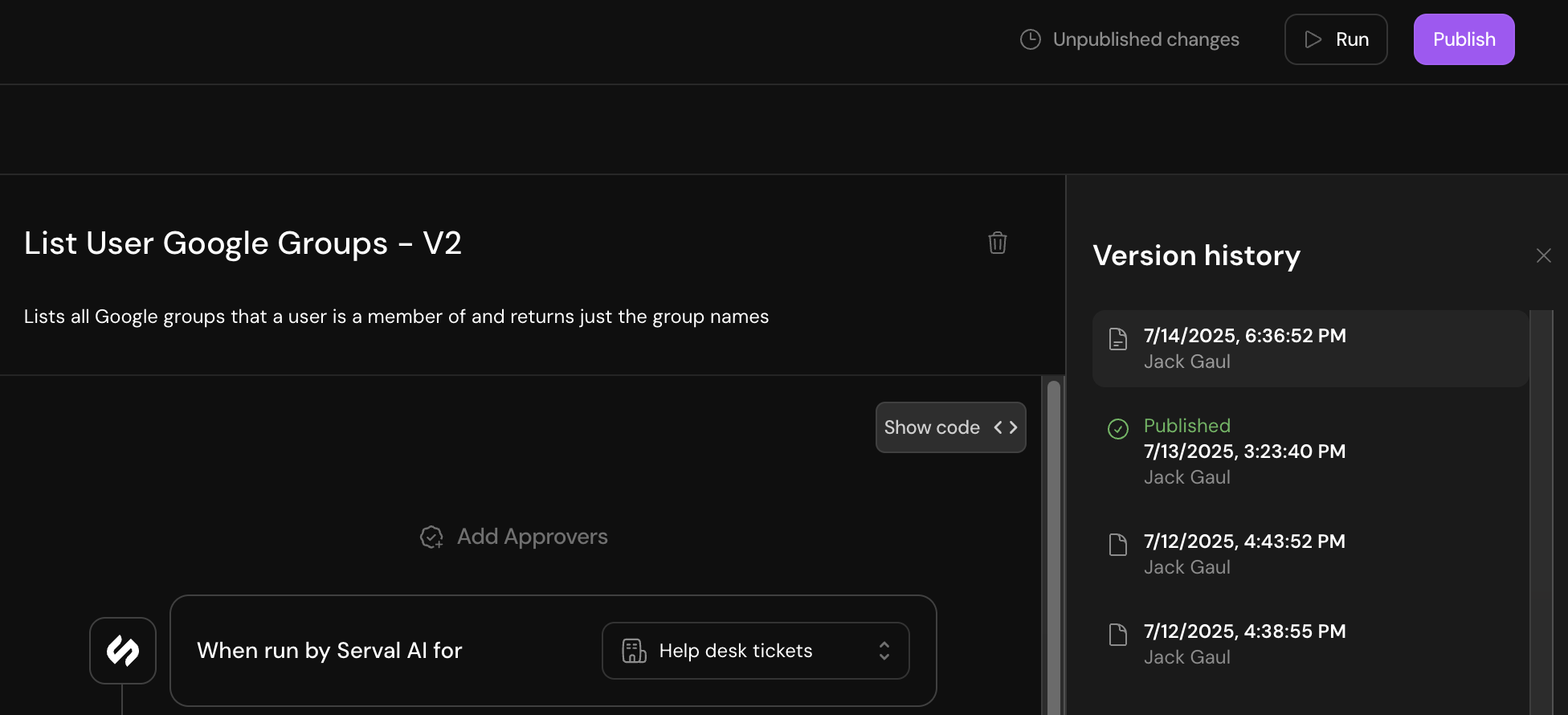 Restoring a version doesn't delete or overwrite any existing versions. It creates a new version based on the historical one, preserving your complete version history.
## Best Practices
* **Regular Publishing**: Publish your workflow changes regularly to maintain a comprehensive version history
* **Version Notes**: Consider adding descriptive names or comments to significant versions for easier identification
* **Testing**: Always test restored versions before publishing to ensure they still work as expected with any system changes
Restoring a version doesn't delete or overwrite any existing versions. It creates a new version based on the historical one, preserving your complete version history.
## Best Practices
* **Regular Publishing**: Publish your workflow changes regularly to maintain a comprehensive version history
* **Version Notes**: Consider adding descriptive names or comments to significant versions for easier identification
* **Testing**: Always test restored versions before publishing to ensure they still work as expected with any system changes