> ## Documentation Index
> Fetch the complete documentation index at: https://serval-hannah-docs-custom-access.mintlify.site/llms.txt
> Use this file to discover all available pages before exploring further.
# Freshservice
## About Freshservice
Freshservice is a IT-service-management platform. Connecting Freshservice to Serval allows the syncing of tickets between the two systems.
## What the Freshservice integration enables
| Capability | Description |
| -------------------- | ---------------------------------------------------------------------------------------- |
| Access Management | Create, update, and manage users and their permissions |
| Automation workflows | Trigger automated processes and approval flows |
| Sync Tickets | Maintain data consistency across platforms, sync tickets between Serval and Freshservice |
***
## Freshservice configuration (in Freshservice)
You authenticate Serval with a Freshservice **API key**. You can generate this key from either:
* **A dedicated service account** (recommended) – clearer attribution and least-privilege.
* **An existing admin** – faster but all automations appear under that admin's name.
### Generate the API key (service-account flow recommended)
1. In Freshservice **Admin → Agents** create a new agent (e.g. *Serval Integration*).
2. Assign it the **Agent** role (ticket comment permissions).
3. Open the profile → **Settings → API Key** and copy the key (shown once).
If you prefer to reuse an existing admin, just perform step 3 while logged in as that admin.
***
## Serval Configuration
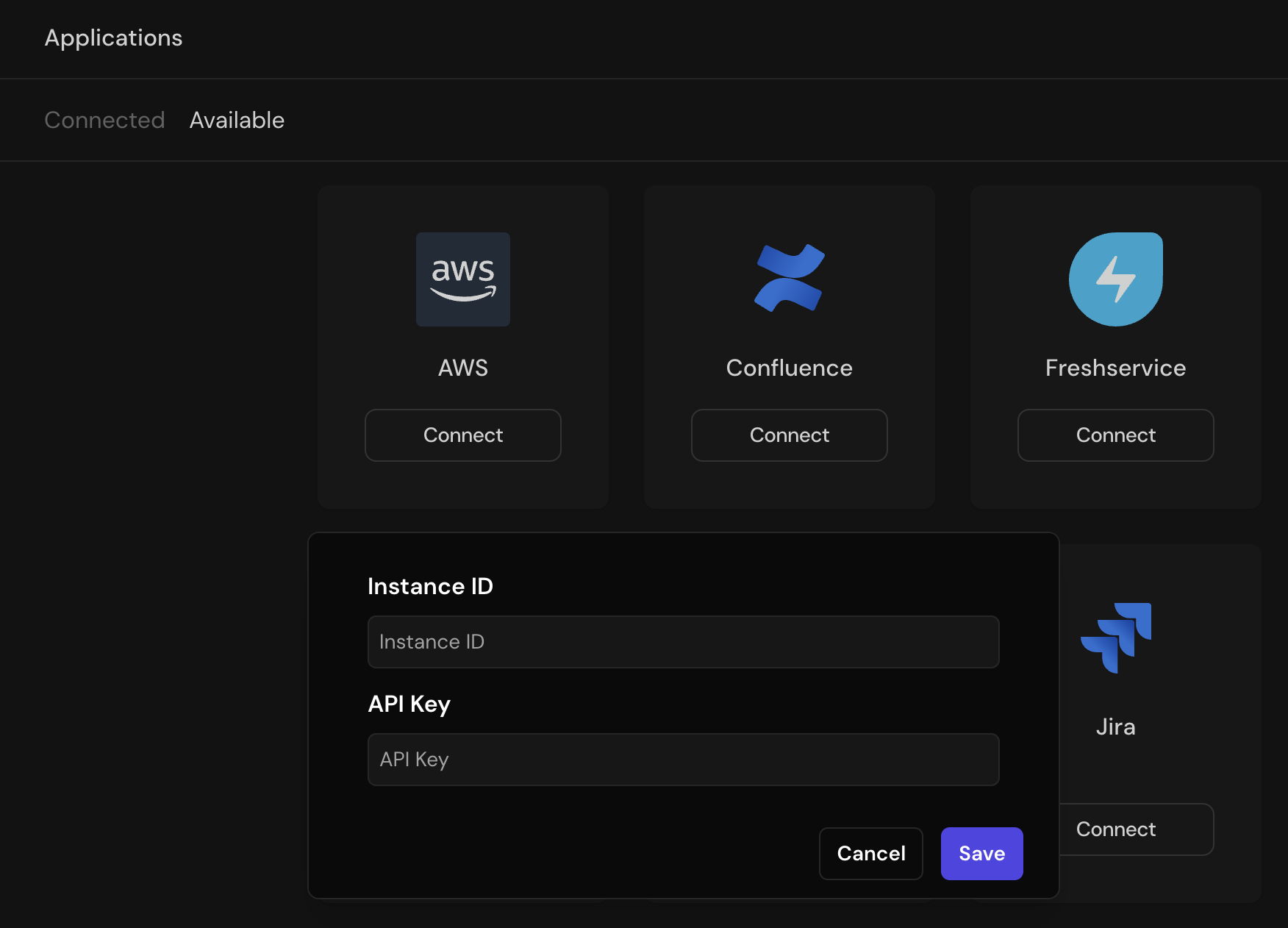
1. In Serval navigate to **Apps → Available → Freshservice → Connect**.
2. Complete the form:
 | Field | Value |
| ------------------- | -------------------------------------------------------------------------------------------- |
| Service Instance ID | Your Freshservice domain. For `https://acme.freshservice.com` enter `acme.freshservice.com`. |
| API Key | The key you generated above. |
3. Click **Save**.
Serval can now post comments, update tickets and read data according to the Freshservice role and API key you supplied.
***
## Additional notes
### Recommendation – use a service account
Using a dedicated service account keeps automated updates separate from human comments.
### Comment attribution rules
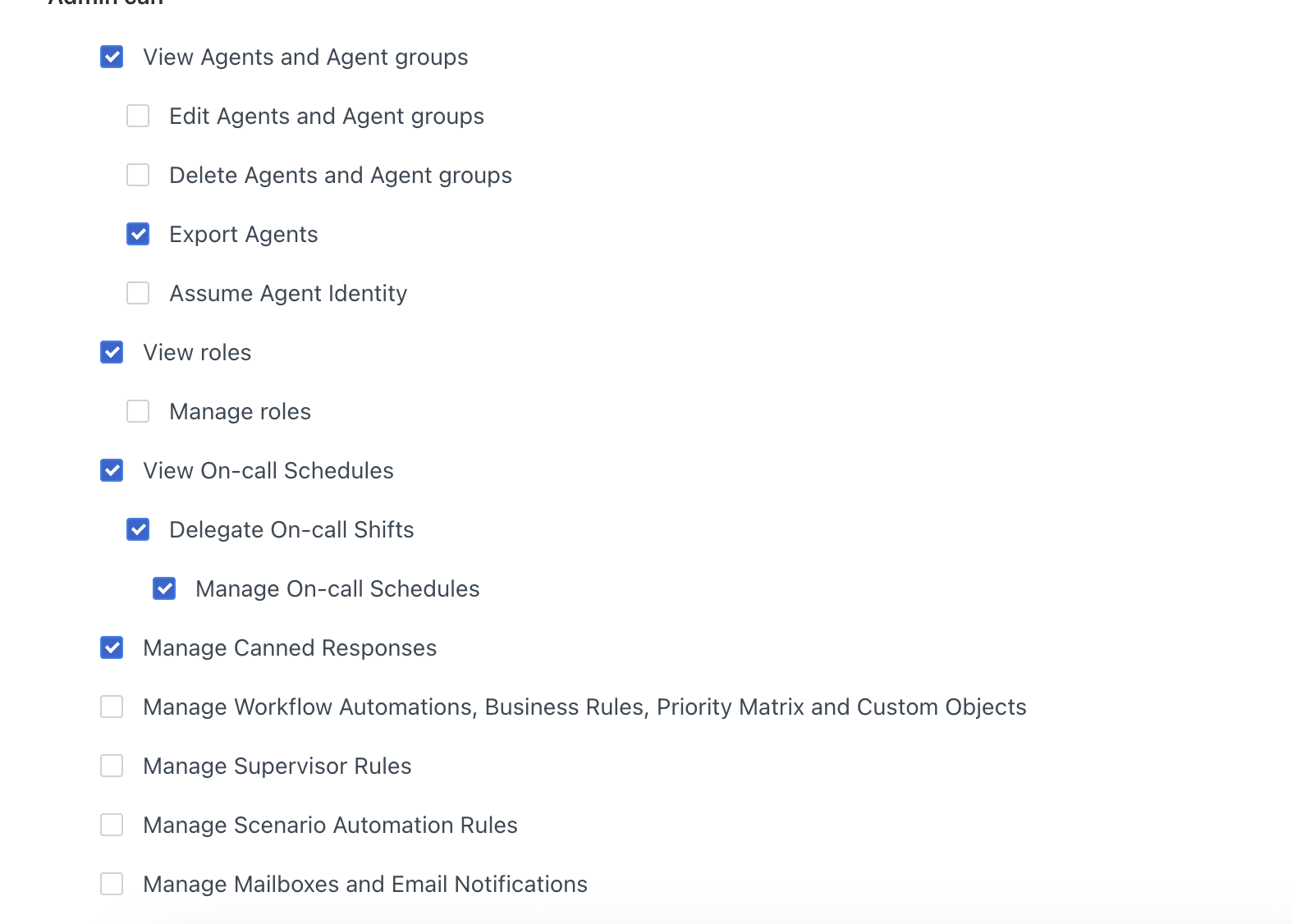
Freshservice only allows Serval to impersonate agents whose role **does not** include powerful admin permissions (e.g. *Edit Agents*, *Manage Roles*). If an agent has those permissions, Serval will fall back to posting as the service account and include a note with the original author. See the image below for a minimal, non-admin role:
| Field | Value |
| ------------------- | -------------------------------------------------------------------------------------------- |
| Service Instance ID | Your Freshservice domain. For `https://acme.freshservice.com` enter `acme.freshservice.com`. |
| API Key | The key you generated above. |
3. Click **Save**.
Serval can now post comments, update tickets and read data according to the Freshservice role and API key you supplied.
***
## Additional notes
### Recommendation – use a service account
Using a dedicated service account keeps automated updates separate from human comments.
### Comment attribution rules
Freshservice only allows Serval to impersonate agents whose role **does not** include powerful admin permissions (e.g. *Edit Agents*, *Manage Roles*). If an agent has those permissions, Serval will fall back to posting as the service account and include a note with the original author. See the image below for a minimal, non-admin role: