> ## Documentation Index
> Fetch the complete documentation index at: https://serval-hannah-docs-custom-access.mintlify.site/llms.txt
> Use this file to discover all available pages before exploring further.
# Navan
## About Navan
Navan is a comprehensive travel and expense management platform that streamlines corporate travel booking, expense reporting, and invoice management. Connecting Navan to Serval enables automated booking data retrieval, travel policy enforcement, and expense workflow automation directly from your service desk.
## What the Navan integration enables
| Capability | Description |
| -------------------- | ------------------------------------------------------------------------------- |
| Automation workflows | Query bookings, monitor travel patterns, retrieve expense information, and more |
Anything defined in the [Navan Booking Data API](https://app.navan.com/swagger-ui/index.html) can be accessed through Serval.
***
## Navan Configuration
### Prerequisites
* You must have access to the [Admin Dashboard](https://app.navan.com/app/admin2/en/dashboard) in Navan
### Create API Credentials
1. **Navigate to Admin Settings**
* Log in to your [Navan account](https://app.navan.com) on web
* In the top left corner, click the Navan logo and select **Admin** (or navigate directly to the [Admin Dashboard](https://app.navan.com/app/admin2/en/dashboard))
2. **Access Integrations**
* From the [Admin Dashboard](https://app.navan.com/app/admin2/en/dashboard), navigate to **Travel → Settings → [Integrations](https://app.navan.com/app/admin2/en/settings/integrations)** in the left menu (or go directly to the [Integrations page](https://app.navan.com/app/admin2/en/settings/integrations))
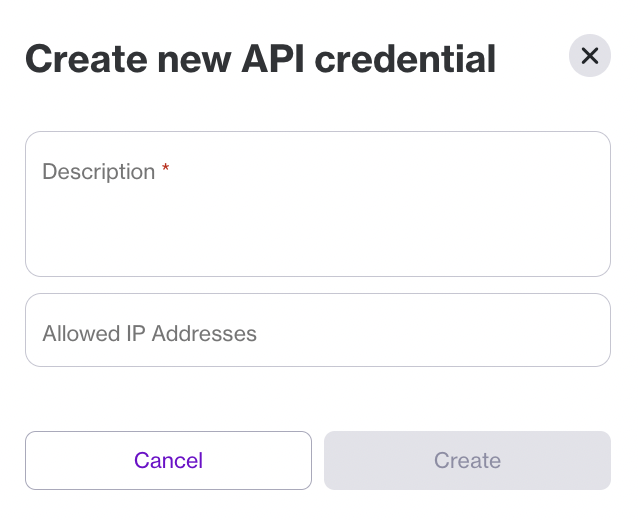 3. **Create New API Credentials**
* On the [Integrations page](https://app.navan.com/app/admin2/en/settings/integrations), scroll to the **Navan API Credentials** section
* Click **Create new**
* A pop-up window will prompt you to enter a **Description** (this serves as the name for the credentials)
* *\[Optional]* Enter **Allowed IP Addresses** or **Subnet Mask** for additional security
* Click **Create**
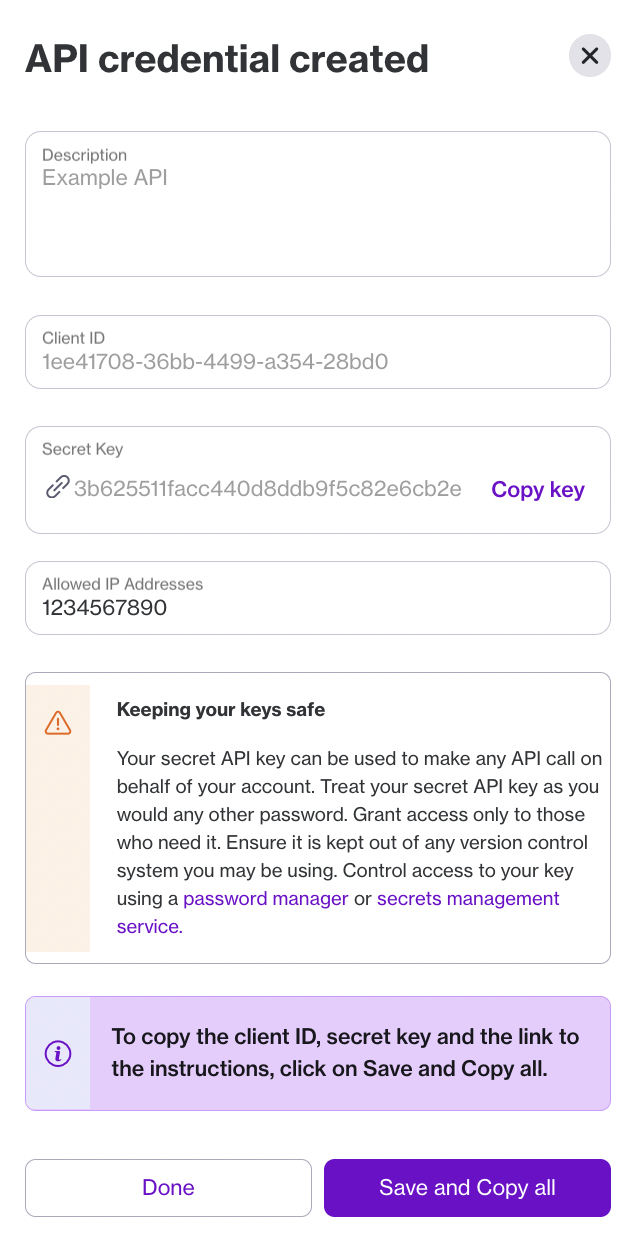
4. **Save Your Credentials**
* A new pop-up window will show you the API credentials
* **Important**: Copy the **Client ID** and **Secret Key** immediately - once this pop-up is closed, the secret key will no longer be accessible
* Click **Copy All** to copy the Description, Client ID, and Secret Key to your clipboard
3. **Create New API Credentials**
* On the [Integrations page](https://app.navan.com/app/admin2/en/settings/integrations), scroll to the **Navan API Credentials** section
* Click **Create new**
* A pop-up window will prompt you to enter a **Description** (this serves as the name for the credentials)
* *\[Optional]* Enter **Allowed IP Addresses** or **Subnet Mask** for additional security
* Click **Create**
4. **Save Your Credentials**
* A new pop-up window will show you the API credentials
* **Important**: Copy the **Client ID** and **Secret Key** immediately - once this pop-up is closed, the secret key will no longer be accessible
* Click **Copy All** to copy the Description, Client ID, and Secret Key to your clipboard
 ### Managing Existing API Credentials
#### Editing a Credential
* Select the **Edit** option associated with each credential
* You can:
* Edit the allowed IP addresses or subnet masks
* **Rotate Key** - changes the private key for the same Client ID
* **Revoke** the API credentials
### Managing Existing API Credentials
#### Editing a Credential
* Select the **Edit** option associated with each credential
* You can:
* Edit the allowed IP addresses or subnet masks
* **Rotate Key** - changes the private key for the same Client ID
* **Revoke** the API credentials
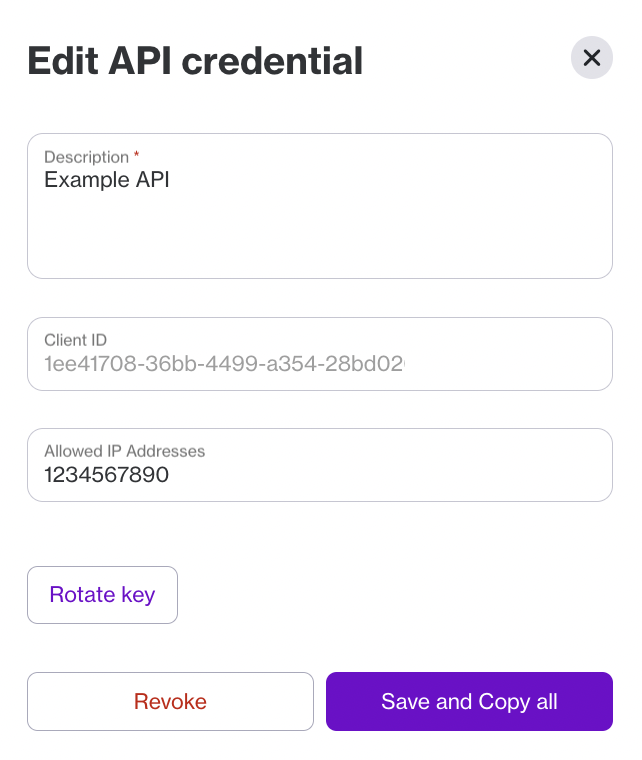 **Note**: The Description and Client ID cannot be changed after creation. To change these, delete the existing credential and create a new one.
#### Deleting a Credential
* Click **Edit** on an API credential
* Select **Revoke**
* Confirm that you want to proceed with revoking the credential
### API Security Best Practices
* Treat your secret API key as you would any other password
* Grant access only to those who need it
* Share and store credentials via secure methods
* Keep credentials out of any version control system
* Use a password manager or secrets management service to control access
***
## Serval Configuration
1. In Serval go to **Apps → Available → Navan → Connect**
2. Enter the following information:
| Field | Description |
| ------------- | --------------------------------------------------------- |
| Instance Name | A friendly name for this integration (e.g., "My Company") |
| Client ID | The Client ID from your Navan API credentials |
| Client Secret | The Secret Key from your Navan API credentials |
3. Click **Save**
Serval will now connect to the Navan Booking Data API and can retrieve booking information, transactions, and travel data for your workflows.
***
## Additional Resources
* [Navan Integrations Settings](https://app.navan.com/app/admin2/en/settings/integrations) - Create and manage API credentials
* [Navan Admin Dashboard](https://app.navan.com/app/admin2/en/dashboard) - Manage your Navan account settings
* [Navan Booking Data API](https://app.navan.com/swagger-ui/index.html) - Complete API documentation and reference
* [Navan Help Center](https://navan.com/help) - General Navan documentation and support
**Important**: The Navan API requires date filters (`createdFrom/createdTo` or `updatedFrom/updatedTo`) for all booking queries. Refer to the [API documentation](https://app.navan.com/swagger-ui/index.html) for parameter details.
***
Need help? Contact **[support@serval.com](mailto:support@serval.com)** for assistance with your Navan integration.
**Note**: The Description and Client ID cannot be changed after creation. To change these, delete the existing credential and create a new one.
#### Deleting a Credential
* Click **Edit** on an API credential
* Select **Revoke**
* Confirm that you want to proceed with revoking the credential
### API Security Best Practices
* Treat your secret API key as you would any other password
* Grant access only to those who need it
* Share and store credentials via secure methods
* Keep credentials out of any version control system
* Use a password manager or secrets management service to control access
***
## Serval Configuration
1. In Serval go to **Apps → Available → Navan → Connect**
2. Enter the following information:
| Field | Description |
| ------------- | --------------------------------------------------------- |
| Instance Name | A friendly name for this integration (e.g., "My Company") |
| Client ID | The Client ID from your Navan API credentials |
| Client Secret | The Secret Key from your Navan API credentials |
3. Click **Save**
Serval will now connect to the Navan Booking Data API and can retrieve booking information, transactions, and travel data for your workflows.
***
## Additional Resources
* [Navan Integrations Settings](https://app.navan.com/app/admin2/en/settings/integrations) - Create and manage API credentials
* [Navan Admin Dashboard](https://app.navan.com/app/admin2/en/dashboard) - Manage your Navan account settings
* [Navan Booking Data API](https://app.navan.com/swagger-ui/index.html) - Complete API documentation and reference
* [Navan Help Center](https://navan.com/help) - General Navan documentation and support
**Important**: The Navan API requires date filters (`createdFrom/createdTo` or `updatedFrom/updatedTo`) for all booking queries. Refer to the [API documentation](https://app.navan.com/swagger-ui/index.html) for parameter details.
***
Need help? Contact **[support@serval.com](mailto:support@serval.com)** for assistance with your Navan integration.