> ## Documentation Index
> Fetch the complete documentation index at: https://serval-hannah-docs-custom-access.mintlify.site/llms.txt
> Use this file to discover all available pages before exploring further.
# Zendesk
## 1. About Zendesk
Zendesk is a customer service platform for support ticketing, knowledge management, and customer engagement. Connecting Zendesk to Serval enables automated ticket management and user provisioning workflows.
## 2. What the Zendesk integration enables
| Capability | Description |
| -------------------- | ------------------------------------------------------------------------------------------------ |
| Automation workflows | Build workflows to streamline customer support processes, ticket escalation, and user management |
Anything defined in the [Zendesk API](https://developer.zendesk.com/api-reference/) can be accessed through Serval.
***
## 3. Zendesk configuration
### Prerequisites
* Admin permissions in your Zendesk instance
* Your Zendesk domain (e.g., `company.zendesk.com`)
### Create an API Token
1. In Zendesk, click the **gear icon** (Admin) in the left sidebar
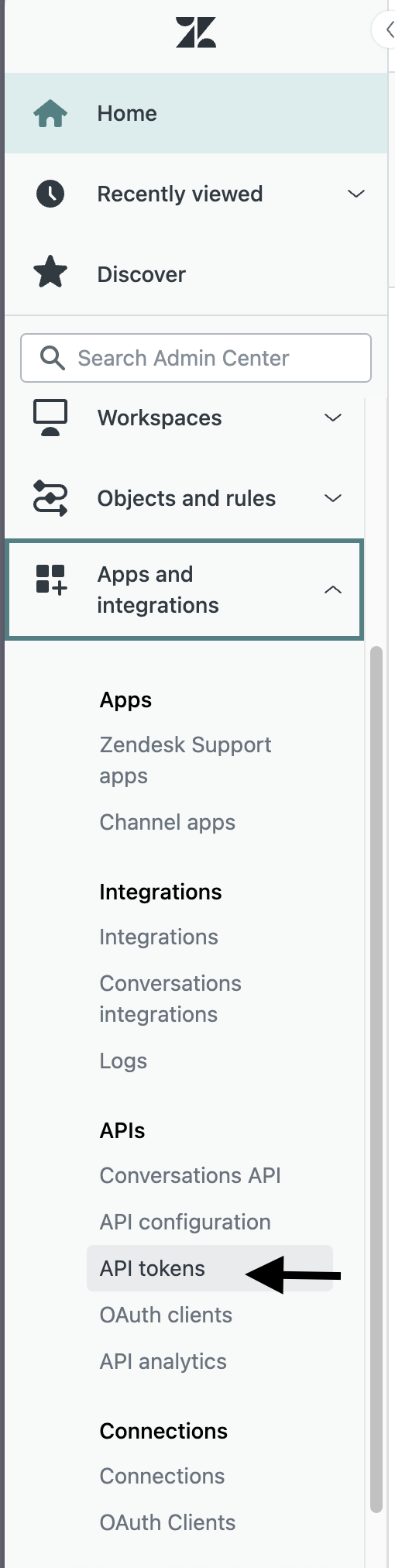
2. Navigate to **Apps and integrations** → **API Tokens**
 3. Enable **Token access** if not already enabled
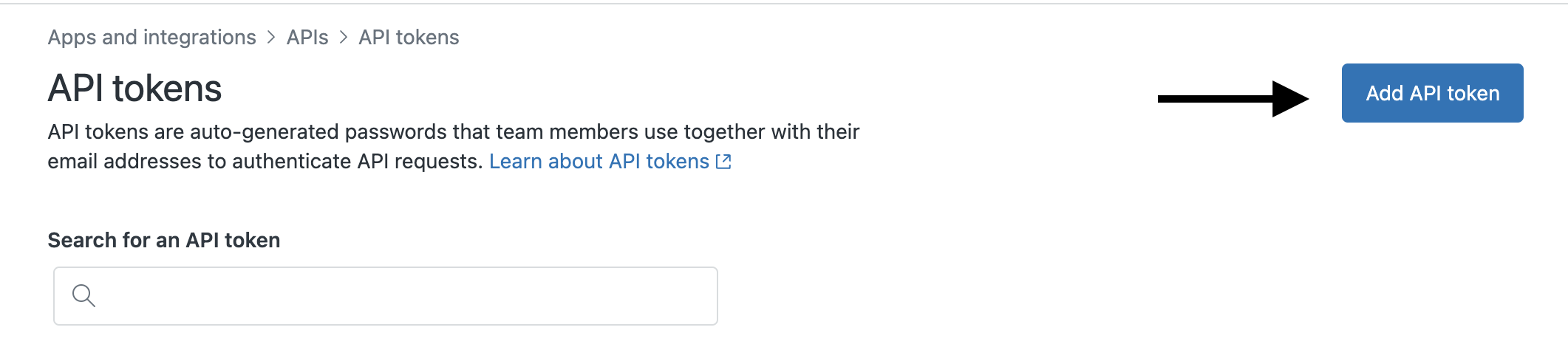
4. Click **+ Add API token**
3. Enable **Token access** if not already enabled
4. Click **+ Add API token**
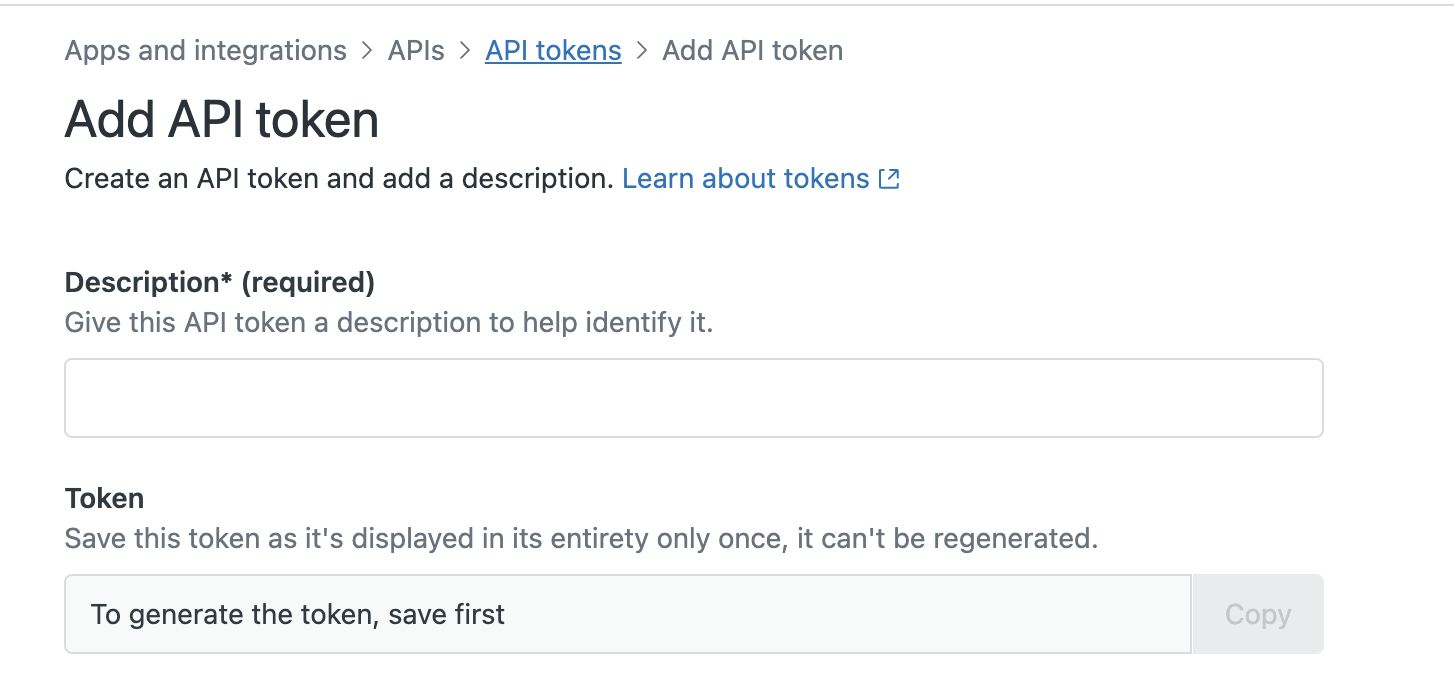
 5. Add description: "Serval Integration"
6. Copy the generated token (shown only once)
7. Click **Save**
5. Add description: "Serval Integration"
6. Copy the generated token (shown only once)
7. Click **Save**
 ***
## 4. Serval Configuration
1. In Serval go to **Apps → Available → Zendesk → Connect**
2. Enter the following:
| Field | Description |
| ------------------- | ------------------------------------------------- |
| Instance Name | Friendly name (e.g., "Production Zendesk") |
| Service Instance ID | Your Zendesk domain (e.g., `company.zendesk.com`) |
| Email Address | Email of a Zendesk admin or agent |
| API Token | The API token from step 3 |
3. Click **Save**
***
Need help? Contact **[support@serval.com](mailto:support@serval.com)** for assistance.
***
## 4. Serval Configuration
1. In Serval go to **Apps → Available → Zendesk → Connect**
2. Enter the following:
| Field | Description |
| ------------------- | ------------------------------------------------- |
| Instance Name | Friendly name (e.g., "Production Zendesk") |
| Service Instance ID | Your Zendesk domain (e.g., `company.zendesk.com`) |
| Email Address | Email of a Zendesk admin or agent |
| API Token | The API token from step 3 |
3. Click **Save**
***
Need help? Contact **[support@serval.com](mailto:support@serval.com)** for assistance.