

What the Jira integration enables
Anything defined in the Jira REST API can be accessed through Serval.
Jira Configuration
Connecting Jira to Serval is straightforward and requires no manual configuration on the Jira side. The integration uses OAuth to securely connect your Jira instance with Serval.Prerequisites
- You must have admin permissions in your Jira instance
- Access to install apps in your Jira workspace
Serval Configuration
- In Serval go to Apps → Available → Jira → Connect
- Click the Connect button to initiate the OAuth flow
-
A new window will open directing you to your Jira instance
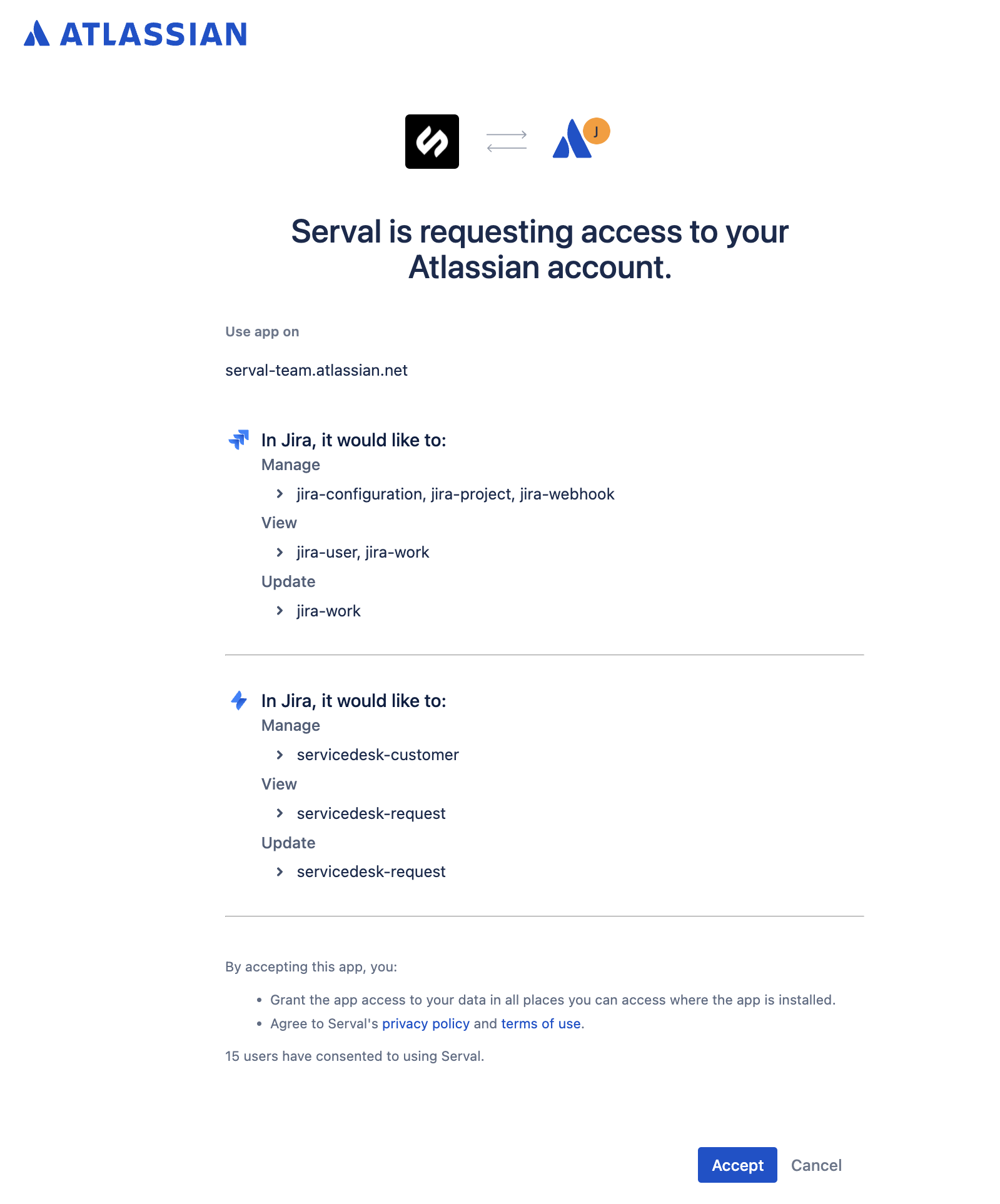
- Review and accept the integration permissions and scopes
- Click Accept to complete the connection
- You’ll be redirected back to Serval with the integration successfully connected
Additional Notes
Ticket Syncing
To enable ticket syncing follow these steps:-
Navigate to
https://admin.atlassian.com/s/[your-instance-id]/user-connected-apps/tab/installed - Click the Settings tab
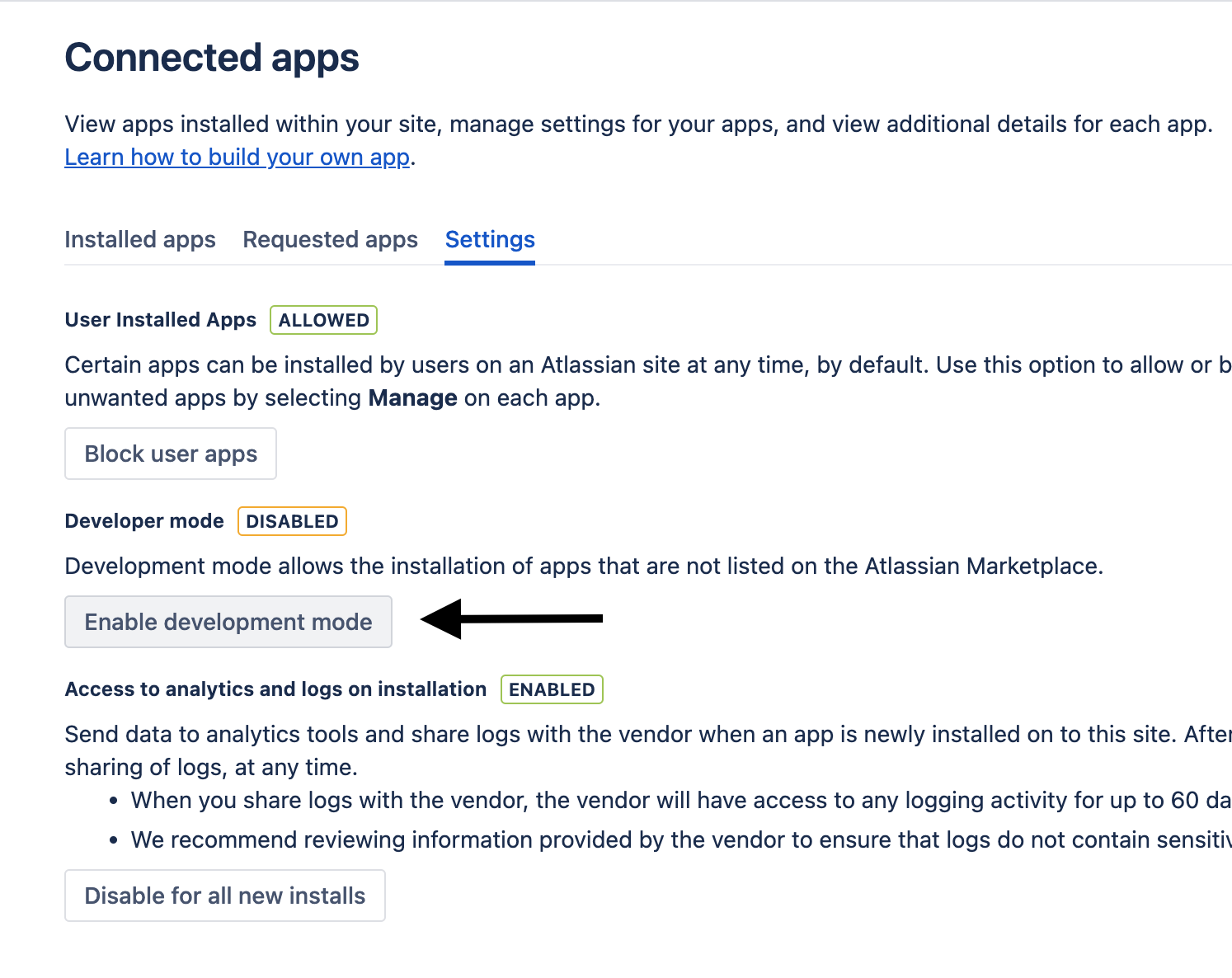
-
Ensure Enable development mode is turned on
-
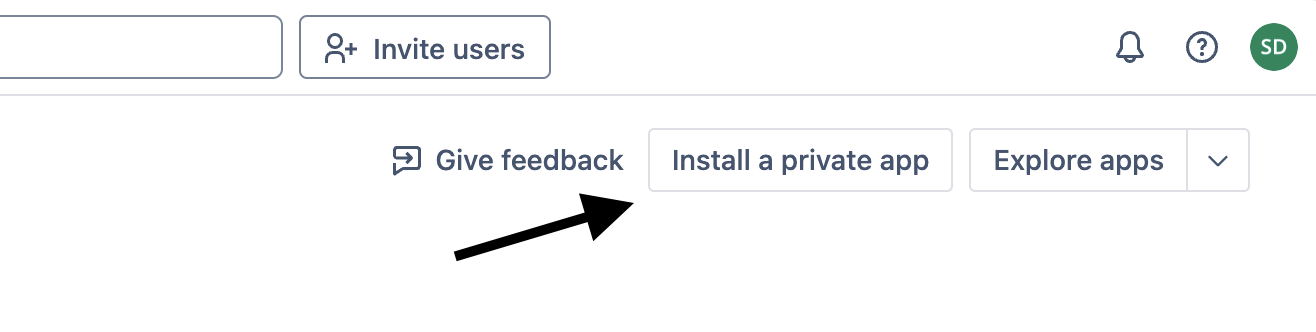
Click Install private app button
-
Enter the following URL:
https://svflow-oauth.api.serval.com/jira-connect/atlassian-connect.json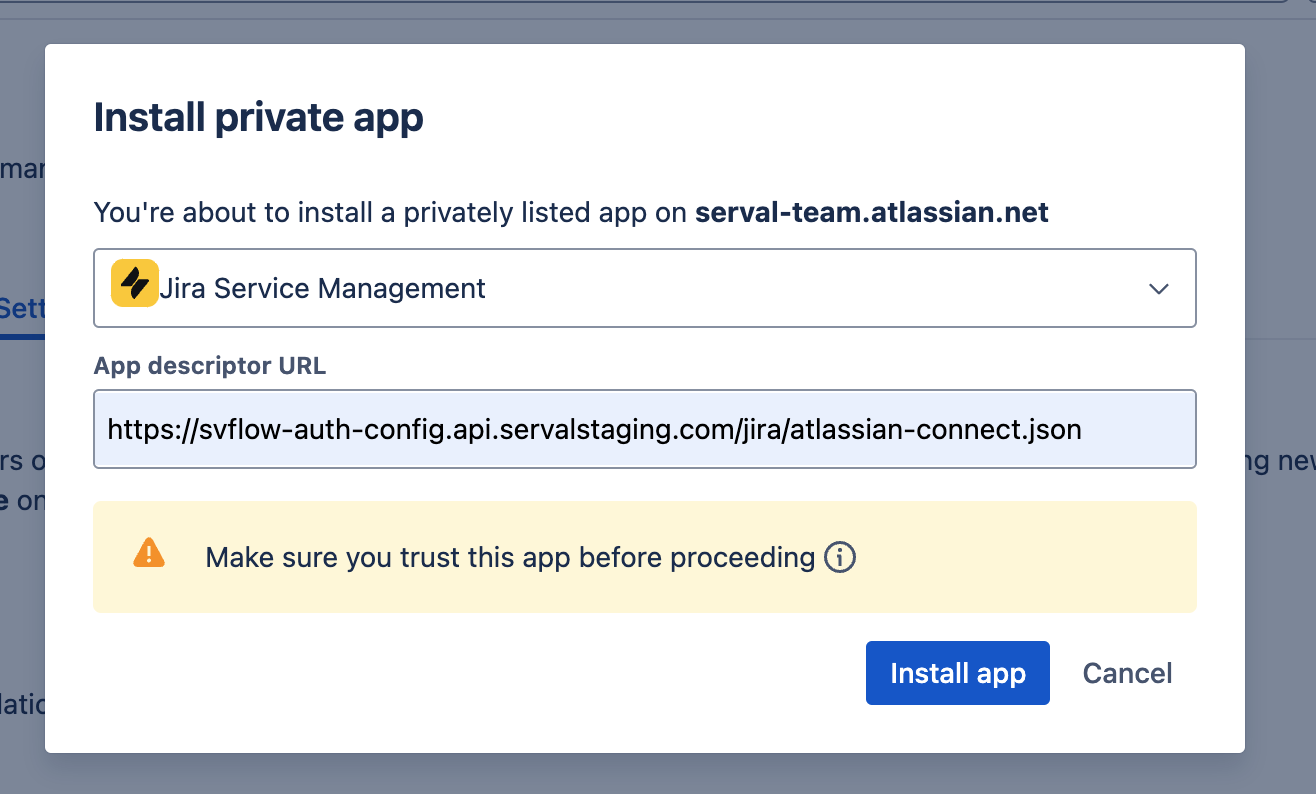
- Click Install to enable enhanced ticket syncing features
Need help? Contact support@serval.com for assistance with your Jira integration.