

Quickstart process overview
- Connect an application that you want to manage access to
- Configure application and resource roles in that application (If you have an IdP, connect your first IdP provider)
- Test access requests
- Manage profiles and policies centrally
- Learn 7. Examples: Learn how other orgs set up access to help guide your process 8. Best practices: Notes about IdPs, email d-list and Slack channels and Google groups
1. Connect an application
Find the first application you’d like to build and ensure it’s connected - you can find instructions for each application in integrations overview. Use either a pre-built integration or build a custom integration. Important note: If you only want to use this application for access managment and don’t need to use it for any type of workflows, you can create a “shell” of the application without setting up the full integration.If you have not set up your Slack or Teams integration yet for a messaging integration, we suggest that you do this now as a way to test roles and permissioning.
2. Configure roles
Navigate to the application you’d like to configure access to, and figure out which roles you’d like to configure first. In an application, you can configure role access both at the application layer and at any custom resource layer.- Application roles: Configure role access to an application under “Applications” (e.g., standard access to GitHub)
- Resource roles: Create a custom resource and configure role access within it under “Resources” (e.g., add the engineering GitHub team as a resource and set up roles within that team)
For example, with Figma:Application roles: you can configure just-in-time access to Figma. In Figma, you will see the application roles “admin” “member”, etc.
Resource roles: You can also view your own Figma instance to see what resources you have set up. For example, you may have a Figma (workspace?) that you can assign viewer or editor access to and manage via Serval.
Resource roles: You can also view your own Figma instance to see what resources you have set up. For example, you may have a Figma (workspace?) that you can assign viewer or editor access to and manage via Serval.
- Manual role setup (app or resource): For a connected app, follow the standard instructions below for configuring each application and resource role you want to automate access provisioning for. [This is the most common way of setting up roles today]
- Imported role (app or resource): In the import portal, Serval will identify roles based on IdP groups that already provision access to these roles. Now you can import these and automate access via Serval.
- Auto-filled roles (app only): For select applications, Serval will directly add standard application roles upon connecting the app. Feel free to edit and adjust these. [Currently, only available for Linear + Ramp]
Manually configuring roles for an application
To view and manage access for an application: Navigate to the relevant team from the sidebar → click Applications → Select the relevant application to view or configure access.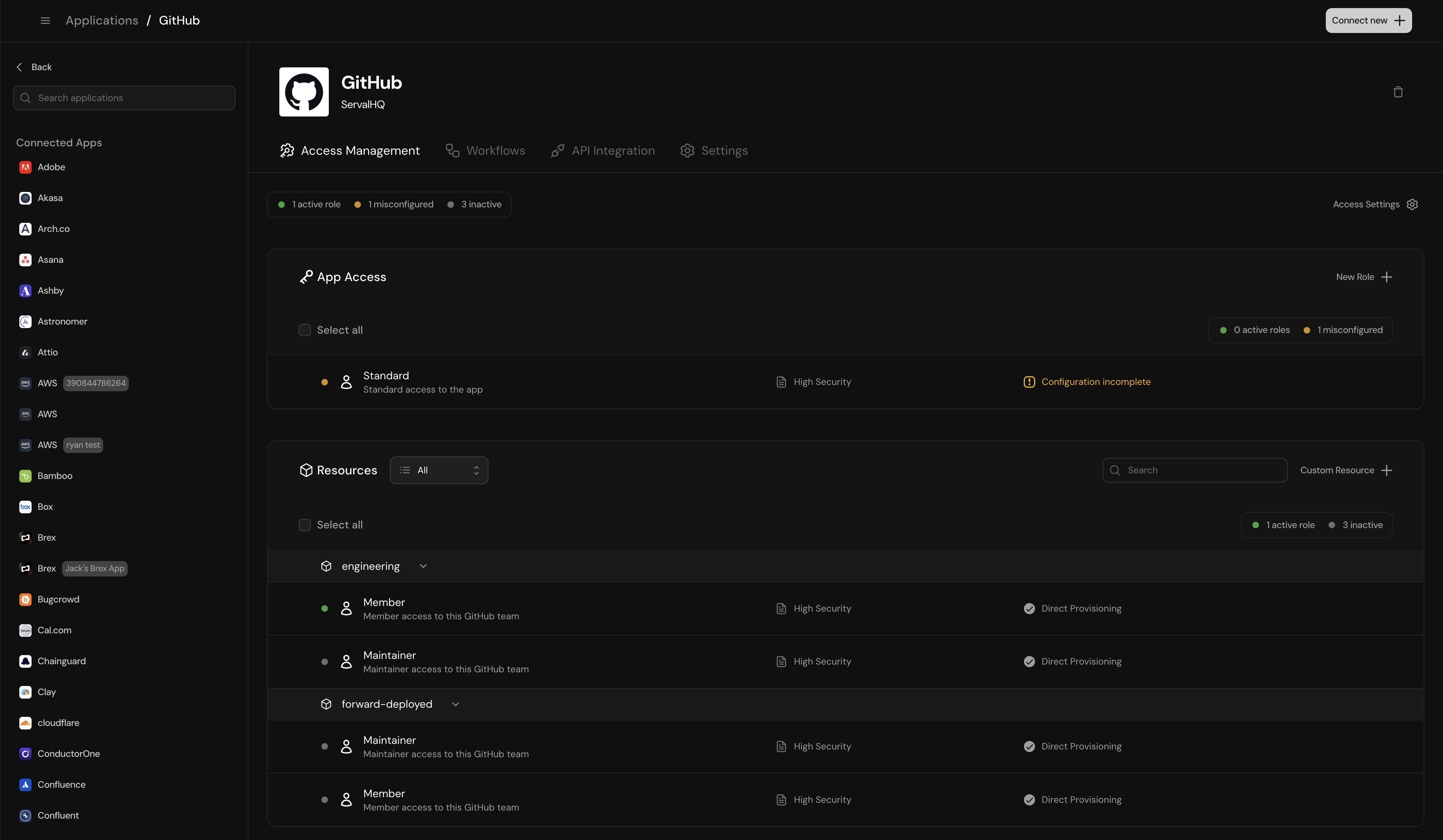
Application Access Overview
- To add a new role inside an application, click “New Role” in “App Access”
- To add a new role in a new resource, click “Create a Custom Resource”, fill in the Name and Description, then a screen will open to create the first role in this resource.
- Name the role (e.g., Member, Admin, Editor)
- Add a description to help Serval guide users to the right access level
- For each role, configure the following. Click each link for details on how to configure each.
- 1. [Link] Access Profiles: Which groups can request this role
- 2 [Link] Access Policies: Rules for access requests (duration, business justification, approval process)
- 3. [Link] Provisioning Methods: How access is granted (manual task, SCIM, custom workflow, API)
- _Best Practice: Connect your IdP [Link] before provisioning access to provision access via Linked groups as much as possible. _
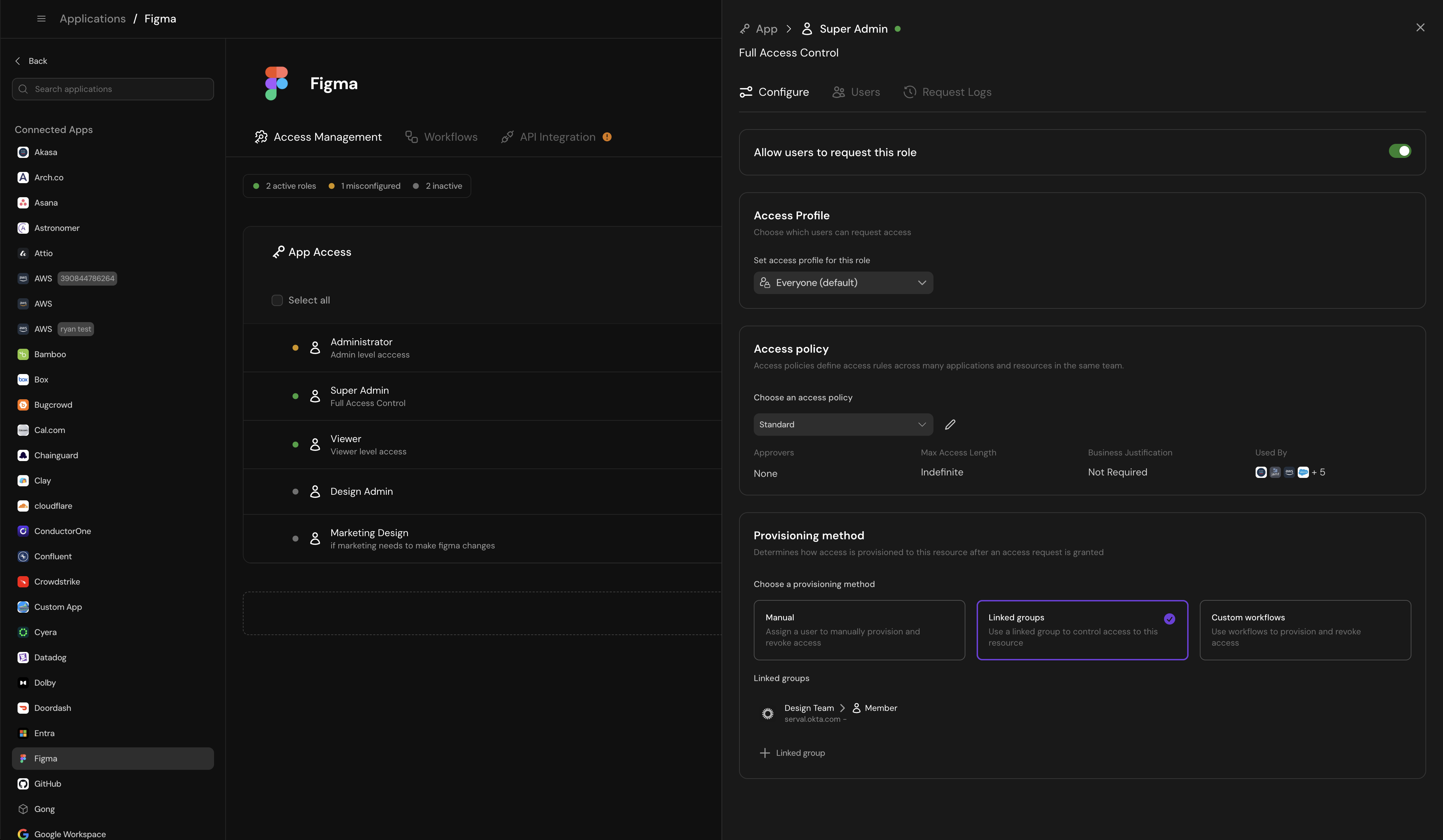
Configure Role
Importing roles
- Once you’ve connected an IdP [Link] to Serval, Serval will populate suggested roles you should set up in each application based on the groups that you have set up in that IdP
- The defaults for each is …
- Serval matches the name of the group to a potential role, and lets you import it so that we start to expand you just-in-time access management platform
- When you’ve imported a role, you will be able to configure provisioning either through Linked Groups, Custom Workflows or Direct (via API)
Auto-filled roles
- For select applications (currently, Linear and Ramp), Serval will identify the default application roles and directly import them
- You should configure each of the
- When there’s an autom
3. Test access requests
Use your configured helpdesk (or the ticketing system in app.serval.com) to ensure that the application is working as you intend it to, to cross check that you have set up the correct policies.4. Audit and monitor access
Once your access management system is in use, you will be able to monitor access and view access logs.5. Manage profiles and policies centrally
Profiles [link] and policies are meant to be re-used across multiple roles for consistency. You can manage each by navigating to the relevant team —> clicking the ”…” ---> selecting profiles [Link] or policies [Link]. Learn more from each page link.6. Learning
Notes: IdP groups and roles
- Imported IdP groups and roles (IdP resources only): Upon connecting your IdP, Serval will ingest all groups from that IdP and store them as resources with a “member” default role for each. These resources will be used as groups across Serval, and are not treated as standard resources. You should not add/remove people to Okta groups via Okta access management —> instead follow the special case instructions. 5. Note - Special cases: Specific cases when you should not manage role access through access —> Slack channels, Google groups, Okta groups, Email D-list 5. Okta special: In Okta we sync in your groups as resources. these are off by default. users get added to okta groups through the applicaiton. 5. In the case that you’re trying to do birthright access through Okta
- Google 6. d-lists: inboxes that are only email 6. google groups - for SSO (access control lists ACL) — to SSO to the app but doesn’t give me app access — these are the only apps that you : https://support.google.com/a/topic/10018788?sjid=1871019022529906284-NC 6. some JIT SAML 6. some are SCIMy
Best practices: This is how example org is set up + how they do it for a lot of our cusotmers
A company typically manages access to its applications in a single team. For databases, engineerings For example an IT or security team would manage just-in-time access to all applications. Users could then … Here’s a good way to think through setting up your application acces- First, let’s process map:
- Write down step by step what happens when someone asks for access
- then let’s simplify your process
- now let’s find as many similar processes that match this
- let’s set up a policy for all those
- then hit them one by one
- HOMEWORK: add the rest yourself
Example Manual Configuration scenario: E.g., you’re a school, VC, VC backed,
- split the top setups by industry
- Tech companies
- VCs
- org structure options
- decentralized across teams
- IT as main owner
- Top access use
- top workflows
- top guidance
- Connect Google and Okta as your IdP sources. This will let you both (a) add users to groups in Google or Okta that already provision access and (b) let Serval view and give managers the option to import role setups into applications
- Slack is likely already set up with your ticketing system, but if it’s not, set up Slack as your help desk source so users can request access and you can test
- Connect GitHub to configure access:
- Set up app access
- Set up resource access
- Connect AWS to configure database resource access controls
- View potential apps for imports
Application Role Example
Scenario: Configure access to Ramp for company-wide access
- Name: Github - Member
- Description: Standard user access
- Policy: Indefinite, no approval needed
- Provisioning: Linked Group - add user to “Engineering” group in Okta
Resource Role Example
Scenario: Configure a GitHub Administrator role
- Name: GitHub Engineering Team - Administrator
- Description: Full admin access to manage repos in GitHub Engineering Team
- Policy: 7-day temporary access, requires Engineering Manager approval
- Provisioning: API provisioning through GitHub