

Overview
Custom provisioning workflows automate access grant and revocation for resources that don’t support SCIM provisioning. Instead of manual provisioning, you can define automated workflows using natural language instructions.Note: Use SCIM provisioning when available. Custom workflows are designed for resources without SCIM support, where you do not want to do manual provisioning.
When to use custom provisioning
- The resource doesn’t support SCIM
- You have API or CLI access to the resource
- Manual provisioning would otherwise be required
How it works
Custom provisioning requires two workflows:- Provisioning workflow: Grants access
- Deprovisioning workflow: Revokes access
Creating a Custom Provisioning Workflow
- In Access Manager, open the role you want to configure.
- Next to “Choose a provisioning workflow,” click +.
- In the workflow builder, enter your provisioning steps below the template line:
Required: Do not delete or modify the template line. It identifies the workflow type.
- Write the provisioning instructions in natural language.
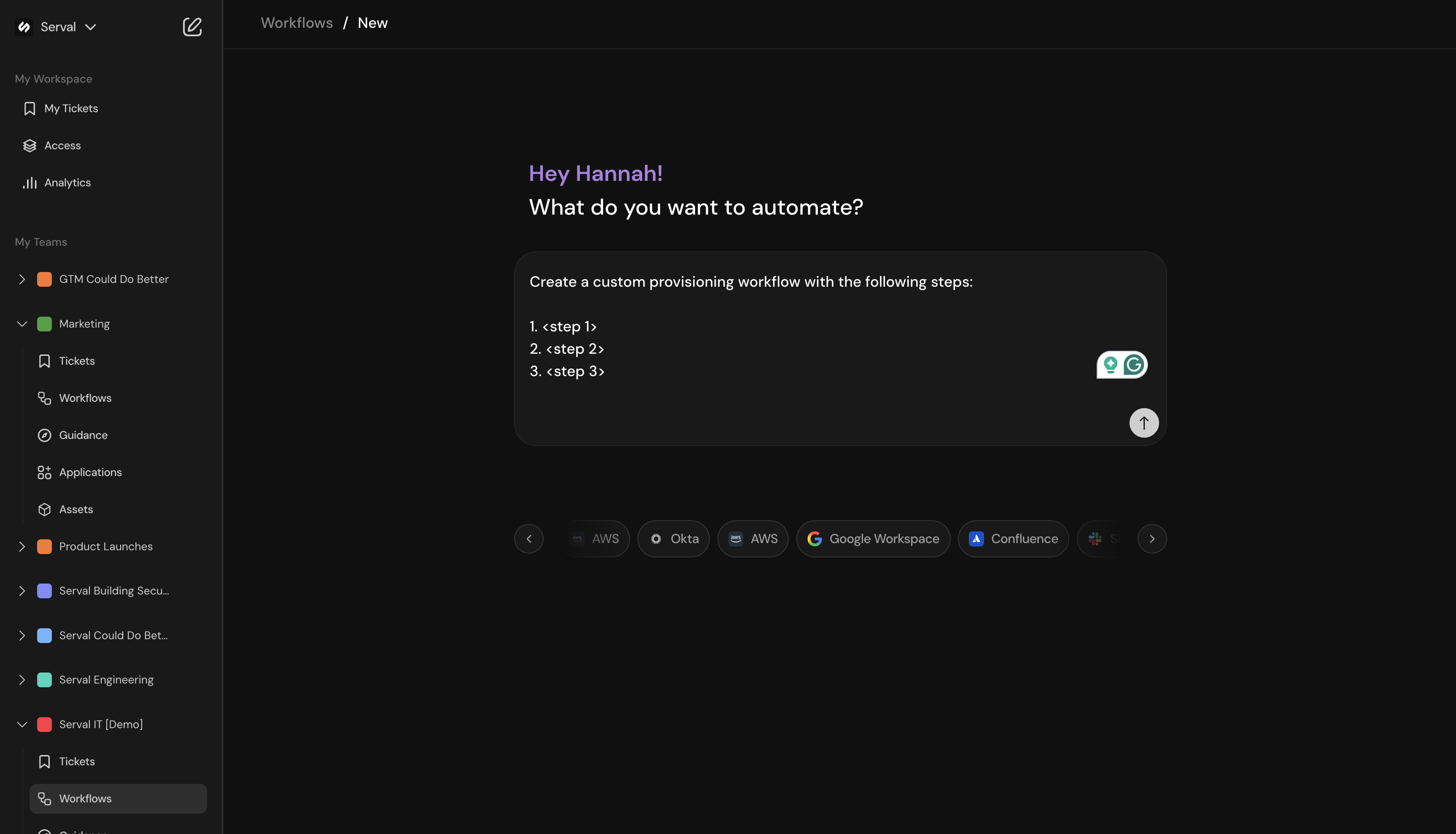
Create Custom Provisioning Workflow
- Click Test workflow to verify the workflow logic.
- Click Publish when ready.
Creating the Deprovisioning Workflow
Create a deprovisioning workflow
- In Access Manager, return to the same role.
- Next to “Choose a deprovisioning workflow,” click +.
- Enter your deprovisioning steps below the template line:
Required: Do not delete or modify the template line.
- Write the deprovisioning instructions.
Example: Slack admin deprovisioning
Note: If this is an application where a user likely has base access, only remove elevated access, not overall access.
- Test and publish the workflow.

Custom Deproivisioning Workflow
Link workflows to the role
- In Access Manager, select the role.
- Under custom workflow, select your published provisioning workflow
- Under deprovisioning workflow, select your published deprovisioning workflow
Note: Custom provisioning workflows cannot be triggered manually. They execute only through access requests managed by the access policy.

Link Custom Provisioning Workflow
Note: You can view all provisioning and deprovisioning workflows in the Workflow Builder. Provisioning workflows are marked with a green key icon, deprovisioning with red.
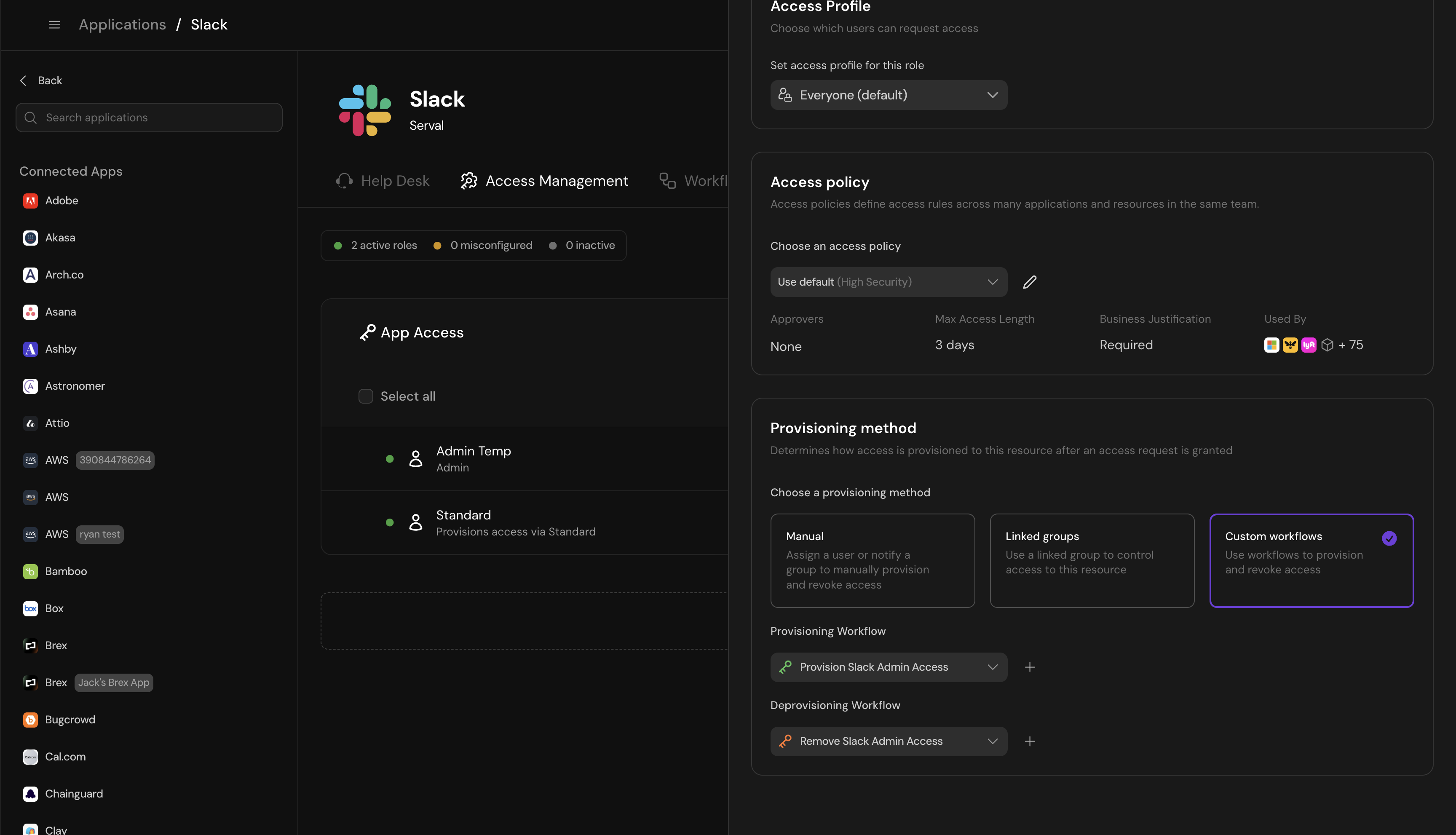
Access Workflows Marked in Workflows with Keys
Verify the configuration
Test the complete flow:- Submit an access request for the role
- Verify the provisioning workflow executes correctly
- Wait for the access period to expire or manually revoke access
- Verify the deprovisioning workflow executes correctly